> For the complete documentation index, see [llms.txt](https://help.refractbot.com/llms.txt). Markdown versions of documentation pages are available by appending `.md` to page URLs; this page is available as [Markdown](https://help.refractbot.com/online-dashboard/settings.md).
# Settings
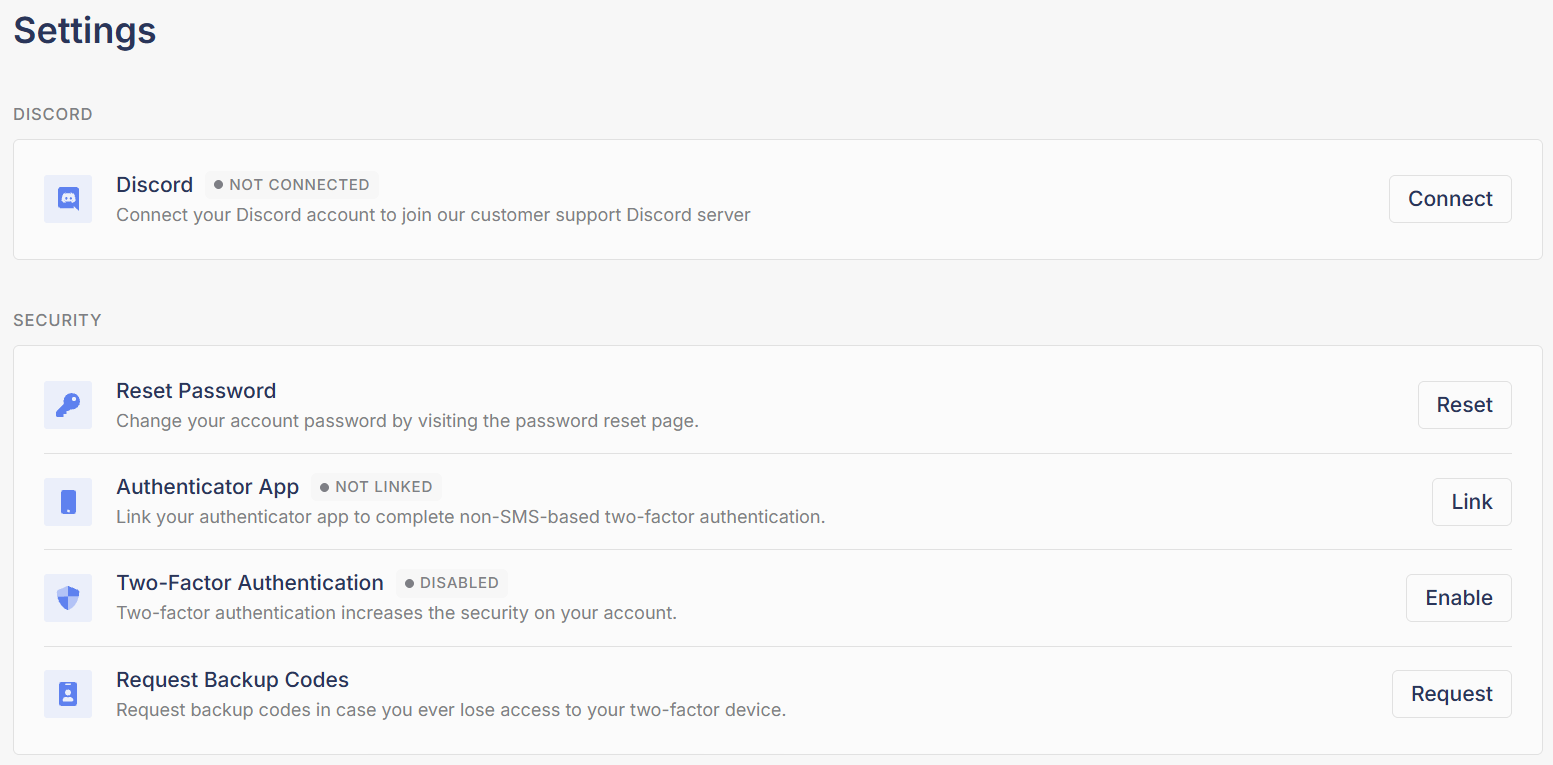
The **Settings** tab is where you connect your Discord, reset your password, and secure your account with two-factor authentication.
Open it here: [dashboard.refractbot.com/settings](https://dashboard.refractbot.com/settings)
The Settings tab: Discord connection up top, security options below.
## Connect your Discord
Refract is account based, but you should still connect a Discord account. Connecting is what gets you into our customer support Discord server, and there is a lot of valuable information in there: announcements, drop info, and the ticket system for 1-on-1 help.
Click **Connect** next to Discord and authorize. You can change which Discord account is connected at any time.
## Your account email
Your Refract account is bound to the email address you purchased with, and that address is permanent.
{% hint style="danger" %}
**Account emails are never changed.** Per our Terms of Service, your account is bound to its email address, and we do not change it under any circumstances, for any reason. There are no exceptions:
* Not if you can no longer get into that inbox.
* Not if the email was hacked, stolen, or taken over.
* Not if the email account was closed, deleted, or suspended by the provider.
* Not if you would rather use a different address.
Staff cannot make an exception, and opening a ticket to ask will not change the answer.
{% endhint %}
The good news is that losing your inbox does not lock you out of Refract.
{% hint style="info" %}
**You do not need access to your email to use Refract.** Signing into the dashboard and the bot takes your email address and your password, nothing more. No code is sent to your inbox at login, so an inbox you cannot open is not a problem: keep signing in with the same email address and password as always.
{% endhint %}
If you have two-factor authentication turned on, your codes come from your authenticator app, not from email. Your backup codes cover you if you lose the authenticator.
## Reset your password
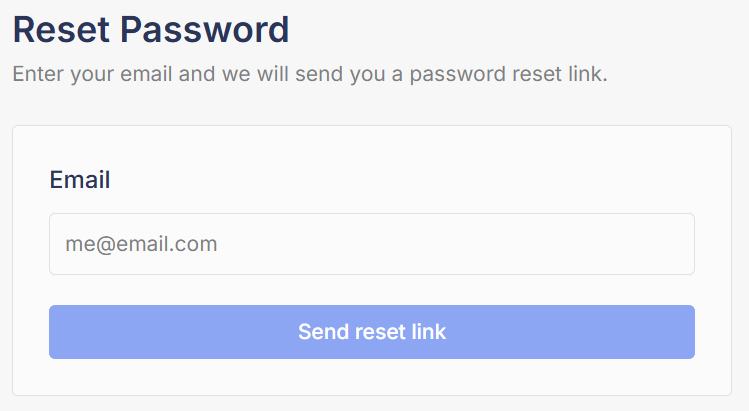
Click **Reset** next to Reset Password to open the password reset page, then enter an email address and click **Send reset link**. Because you request the reset from inside the dashboard, you can have the link sent to an email you can access, even if you have lost access to your account email.
Enter the email that should receive the reset link, then click Send reset link.
{% hint style="warning" %}
Sending the reset link elsewhere does not move your account. Your account email stays what it has always been, and it is still the email address you log in with.
{% endhint %}
## Set up two-factor authentication
Two-factor authentication (2FA) adds a second check at login so a stolen password alone cannot get into your account. Setup is two parts: link an authenticator app, then enable 2FA.
{% stepper %}
{% step %}
#### Link your authenticator app
Click **Link** next to Authenticator App. This works with Authy, Google Authenticator, and similar apps.
{% endstep %}
{% step %}
#### Scan the QR code
Open your authenticator app and scan the QR code shown on screen.
{% endstep %}
{% step %}
#### Confirm with a code
Enter the code your authenticator app generates, then click **Confirm**. The Authenticator App status changes to linked.
{% endstep %}
{% step %}
#### Enable two-factor authentication
Click **Enable** next to Two-Factor Authentication. From now on, logins require a code from your authenticator app.
{% endstep %}
{% endstepper %}
{% hint style="success" %}
With 2FA enabled, request your backup codes right away (below). They are your only way back in if you lose your authenticator.
{% endhint %}
## Request backup codes
Click **Request** next to Request Backup Codes and store the codes somewhere safe and secure, like a password manager.
If you ever lose access to your authenticator app, backup codes are the only way back into your account. At sign in, use a backup code in place of the MFA code.
{% hint style="warning" %}
**Treat backup codes like your password.** Anyone with a code can pass your two-factor check, and losing both your authenticator and your codes means losing access.
{% endhint %}
---
# Agent Instructions
This documentation is published with GitBook. GitBook is the documentation platform designed so that both humans and AI agents can read, navigate, and reason over technical content effectively. Learn more at gitbook.com.
## Querying This Documentation
If you need additional information that is not directly available in this page, you can query the documentation by asking a question.
Perform an HTTP GET request on the following URL with the `ask` and `goal` query parameters:
```
GET https://help.refractbot.com/online-dashboard/settings.md?ask=&goal=
```
`ask` is the immediate question: it should be specific, self-contained, and written in natural language.
`goal` is what the user is ultimately trying to achieve, the reason they need the answer. Sharing it helps GitBook give you a better, more relevant answer. A goal is most helpful when it describes the outcome the user wants rather than restating the question. For example, with `ask=how do I create an API token`, a goal like `automate deployments from our CI pipeline` lets GitBook tailor the answer to that use case.
The response will contain a direct answer to the question and relevant excerpts and sources from the documentation.
Use this mechanism when the answer is not explicitly present in the current page, you need clarification or additional context, or you want to retrieve related documentation sections.