> For the complete documentation index, see [llms.txt](https://help.refractbot.com/llms.txt). Markdown versions of documentation pages are available by appending `.md` to page URLs; this page is available as [Markdown](https://help.refractbot.com/online-dashboard/devices.md).

# Devices

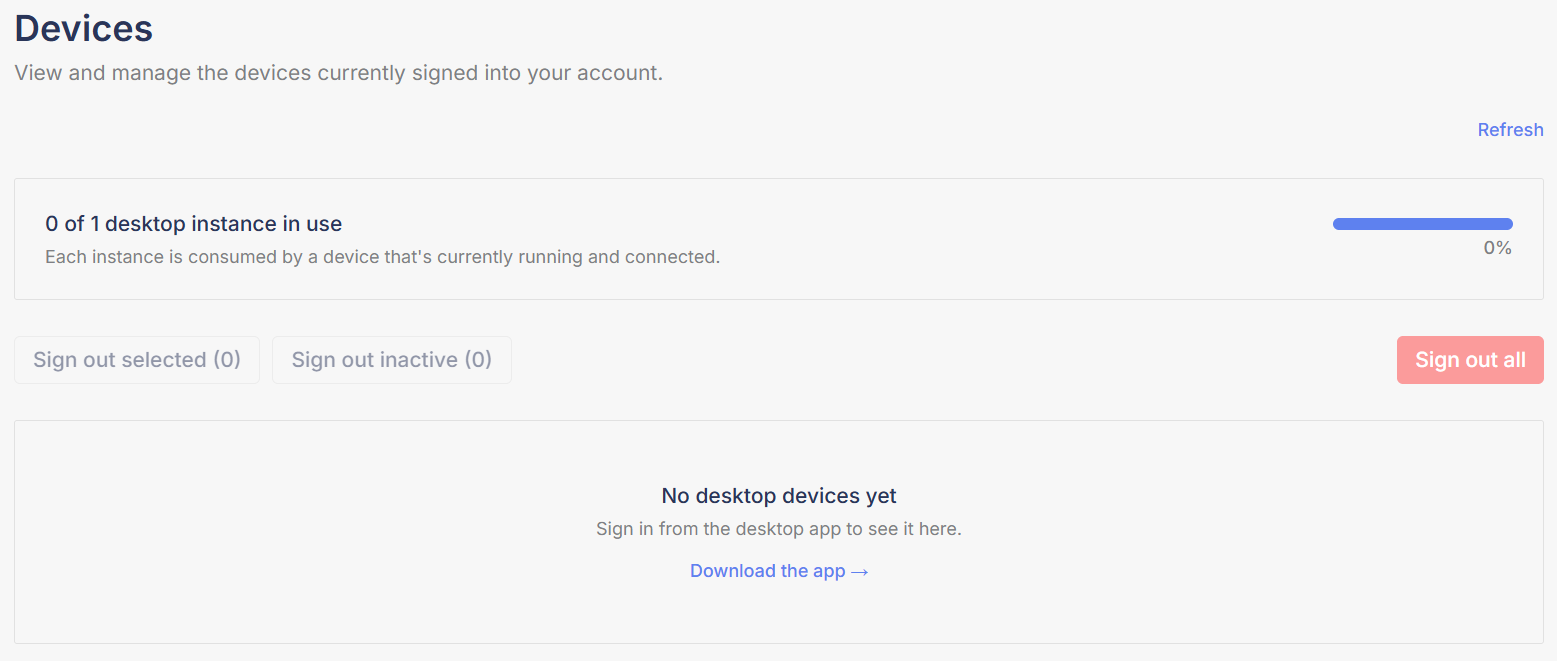
The **Devices** tab shows every device signed into your account and lets you sign them out. This is also where you free up instances when you hit your limit.

Open it here: [dashboard.refractbot.com/devices](https://dashboard.refractbot.com/devices)

<figure><img src="/files/eJ7S526cwqrKoOxsB8ww" alt="The Devices tab showing the instance usage bar, sign-out buttons, and device list"><figcaption><p>The Devices tab: instance usage up top, sign-out controls, and your device list below.</p></figcaption></figure>

## Your instance usage

The bar at the top shows how many of your instances are in use, for example **1 of 2 desktop instances in use**. The total reflects how many instances your subscription includes, and each instance is consumed by a device that is currently running and connected. It is strictly one instance per device: a machine runs one copy of Refract, and a second instance requires a second computer or server.

Click **Refresh** to force the list to reset and show the current state.

{% content-ref url="/pages/KgeKJxFOnpEnFpfYaSKR" %}
[Instances](/online-dashboard/subscription/instances.md)
{% endcontent-ref %}

## Your signed-in devices

Each device in the list shows its name, operating system, bot version, IP address, whether it is active, and when it was last seen.

<figure><img src="/files/DTiwsGWeKsiESSoxlFt4" alt="A signed-in device row showing name, OS, bot version, IP, and Active status"><figcaption><p>An active device: name, operating system, bot version, IP, and when it was last seen.</p></figcaption></figure>

## Sign devices out

You have four ways to sign devices out:

* Click the **X** next to a single device.
* Tick the checkboxes on the devices you want gone, then click **Sign out selected**.
* Click **Sign out inactive** to sign out only the devices that are not currently active.
* Click **Sign out all** to sign out everything at once.

## Fix "Max Instance Limit Reached"

If the bot shows **Max Instance Limit Reached** when you log in, every instance on your subscription is already consumed by another device. Fix it from this page:

{% hint style="info" %}
**Running on a cloud server, like an AWS image?** Stopping and starting a server can change its hardware and IP, so Refract may see it as a brand new device when it comes back up. The old session still counts against your limit, so sign out the stale device here and sign in again.
{% endhint %}

{% stepper %}
{% step %}

#### Open the Devices tab

Go to [dashboard.refractbot.com/devices](https://dashboard.refractbot.com/devices) and click **Refresh** to see the current state.
{% endstep %}

{% step %}

#### Sign out what you do not need

Sign out the devices you are not using. **Sign out all** is the quickest way if you only run one machine.
{% endstep %}

{% step %}

#### Log into the bot again

With an instance freed up, log back into the bot on the device you want to use.
{% endstep %}
{% endstepper %}

{% hint style="success" %}
If you keep hitting the limit because you genuinely run more machines than you have instances, you can add an instance from the Subscription page, up to the current cap.
{% endhint %}


---

# Agent Instructions
This documentation is published with GitBook. GitBook is the documentation platform designed so that both humans and AI agents can read, navigate, and reason over technical content effectively. Learn more at gitbook.com.

## Querying This Documentation
If you need additional information that is not directly available in this page, you can query the documentation dynamically by asking a question.

Perform an HTTP GET request on the current page URL with the `ask` query parameter, and the optional `goal` query parameter:

```
GET https://help.refractbot.com/online-dashboard/devices.md?ask=<question>&goal=<endgoal>
```

`ask` is the immediate question: it should be specific, self-contained, and written in natural language.
`goal` is optional and describes the broader end goal you are ultimately trying to accomplish on behalf of the user. GitBook uses it to tailor the answer towards what is most useful for that goal.

The response will contain a direct answer to the question and relevant excerpts and sources from the documentation.

Use this mechanism when the answer is not explicitly present in the current page, you need clarification or additional context, or you want to retrieve related documentation sections.
