> For the complete documentation index, see [llms.txt](https://help.refractbot.com/llms.txt). Markdown versions of documentation pages are available by appending `.md` to page URLs; this page is available as [Markdown](https://help.refractbot.com/modules/walmart/walmart-setup-guide.md).

# Walmart Setup Guide

This is the complete guide to building a Walmart setup in Refract, from accounts to ready-to-run tasks. Follow each section in order if you are a new user. Experienced users can jump to the section they need.

{% hint style="info" %}
**Running a drop tonight?** This guide covers building the setup. For drop-day flow, queue behavior, and every error you might see, use the release guide:
{% endhint %}

{% content-ref url="/pages/urE0huGXC2d2RTatOYUT" %}
[Walmart Release Guide](/modules/walmart/walmart-release-guide.md)
{% endcontent-ref %}

## Prerequisites

Before you begin, make sure you have the following ready:

* Walmart accounts. Accounts with SMS attached always check out; SMS-less accounts only work while Walmart has enforcement switched off, which changes without warning (see [SMS verification at checkout](#sms-verification-at-checkout)).
* Profiles: one unique profile per task, already created in Refract (see [Profiles Setup](#profiles-setup)).
* Proxies:
  * A list of residential proxies for tasks (at least 5,000)
  * Optional: a separate ISP or residential list for the monitor (at least 10). You can just use your task list for the monitor instead.
  * Optional: a list of ISP proxies for queue proxies (at least 1 per task if used)
* IMAP configured in Refract settings for auto-login codes (see [IMAP Setup](#imap-setup)).
* Product SKU, found in cookgroups or on social media (TikTok, X, etc.).

**Recommended task count:** the average user runs 800 to 1,200 tasks now, and you realistically need that range to be competitive. It is very hard to hit on a dozen or so accounts. See [Scaling Guidelines](#scaling-guidelines) for the per-instance limits.

## The build order

You will do six things, in this order. Each has its own section below:

1. [Accounts](#accounts-setup): add your Walmart accounts and group them.
2. [IMAP](#imap-setup): so the bot can auto-submit login codes.
3. [Profiles](#profiles-setup): one unique profile per task, grouped.
4. [Proxies](#proxy-lists-setup): monitor list, task list, optional queue list.
5. [Task Group](#task-group-setup): the monitor and group-level settings.
6. [Tasks](#task-creation): create the tasks with everything wired together.

Do them in order. Every later step selects things you made in an earlier step.

## Accounts Setup

{% stepper %}
{% step %}

#### Go to the Accounts tab

Go to the Accounts tab in the left sidebar.
{% endstep %}

{% step %}

#### Create an Account Group

Create an Account Group for easy selection later: click **+ Create Group**, name your group, and click **Create Group**.
{% endstep %}

{% step %}

#### Create accounts

Click the **+ Create Account** button.

<figure><img src="/files/o3EtyszrujeCRxfmvnNj" alt="The Create Account button in the Accounts tab" width="165"><figcaption></figcaption></figure>
{% endstep %}

{% step %}

#### Select Walmart

Select Walmart as the site.
{% endstep %}

{% step %}

#### Add accounts

Use Mass Input to add accounts in `email:password` format. Leave all proxy options on the account untouched.
{% endstep %}

{% step %}

#### Optional: move existing accounts

To move existing accounts from the All accounts tab, select multiple accounts with Ctrl+Click or Shift+Click, right-click, and click add to group.
{% endstep %}
{% endstepper %}

**Important rules:**

* All new Walmart accounts need SMS verification when they are made.
* Whether SMS-less accounts can check out depends on Walmart's enforcement, which switches on and off without warning. See [SMS verification at checkout](#sms-verification-at-checkout).
* Never assign proxies directly to accounts in the Accounts tab. Proxies are configured at the task level.
* Each account should only be used once per product. Never run the same account on multiple tasks for the same SKU.

## IMAP Setup

IMAP allows Refract to automatically retrieve Walmart login verification codes sent to your email. Without it, you will need to manually enter codes every time tasks log in.

Setup lives under **Settings > IMAP Logins** and is covered step by step in the IMAP guide:

{% content-ref url="/pages/w4FUaY6NY47OY1XicIjy" %}
[IMAP](/misc./imap.md)
{% endcontent-ref %}

**Tips:**

* IMAP is a bot-wide setting. It applies to all task groups automatically.
* Most users forward all their Walmart account emails to a single master Gmail or iCloud inbox for simplicity.
* Outlook users: Outlook is only supported through AYCD Inbox (see the IMAP guide). If forwarding from Outlook, emails must be directly forwarded, not rule-based forwarded.
* If IMAP appears to not be working, Walmart itself can be slow to send codes or may skip sending them entirely. This is especially common on drop day, when Walmart sometimes stops sending codes altogether. Check the email inbox for the code before troubleshooting the bot: no code in the inbox means Walmart never sent it.

## Profiles Setup

Each task requires its own unique profile. A profile contains your shipping address, billing address, and payment card information.

{% stepper %}
{% step %}

#### Go to Profiles

Go to the Profiles tab in the left sidebar.
{% endstep %}

{% step %}

#### Create or import profiles

Create profiles individually or import them. For import formatting, see the [Profiles setup guide](/general-setup/profiles.md).
{% endstep %}

{% step %}

#### Create a Profile Group

Create a Profile Group for easy selection during task creation: select profiles with Ctrl+Click or Shift+Click and group them.
{% endstep %}
{% endstepper %}

**How profiles work with Walmart accounts:**

{% hint style="info" %}
**Refract always checks out with the profile info in the bot.** You never need to add your shipping address or card to the Walmart account yourself, or with another tool. On task start, Refract makes sure the profile's info is on the account and set as the default for checkout.
{% endhint %}

* Refract uses the profile info in the bot to check out, not whatever is saved on the Walmart account.
* If you update your profile info (new card, new address), just create new tasks with the updated profile. Refract updates the account on the next task start.

**Important rules:**

* Use a unique profile for each task. Do not reuse profiles across tasks for the same product.
* To minimize card authorization issues, try to reuse the same card on the same Walmart account when possible. See [Invalid Card Details](#invalid-card-details-max-card-attempts).
* We do not provide guidance on account creation, profile creation methods, or address formatting strategies. These are your responsibility, and your cook group is the place to compare notes.

## Proxy Lists Setup

You need multiple proxy lists for different purposes.

{% stepper %}
{% step %}

#### Open Proxies

Go to the Proxies tab in the left sidebar.
{% endstep %}

{% step %}

#### Create a list

Click **+** to create a new proxy list.
{% endstep %}

{% step %}

#### Add proxies

Name the list and paste your proxies, one per line.
{% endstep %}
{% endstepper %}

**Proxy lists you need:**

| List                       | Type               | Minimum count | Purpose                                                                           |
| -------------------------- | ------------------ | ------------- | --------------------------------------------------------------------------------- |
| Task Proxies               | Residential        | 5,000+        | Used by each task for login, checkout, and queue entry (if no queue proxy is set) |
| Monitor Proxies (optional) | ISP or Residential | 10+           | Monitors the product page for stock. You can just use your task list here instead |
| Queue Proxies (optional)   | ISP                | 1 per task    | Used only to enter and sit in queue, nowhere else                                 |

You do not need a separate monitor list. The same proxy list works for both tasks and the monitor, on Walmart and every other site. A dedicated monitor list only matters if you are running Skip Monitoring and spamming hard.

**Proxy details:**

* Residential proxies should be sticky/static (not rotating), and US-based only. International or mixed-location pools (Mexico, Canada, etc.) trigger blocks.
* Budget around 2-4 GB of residential data per 200 tasks per drop.
* You can reuse the same proxy list across task groups for different products, but avoid using the same list on multiple groups for the same product at the same time.
* Refract automatically removes duplicate proxies from a list.
* Using the same proxy on too many tasks causes queue loops. If using queue proxies, aim for at least 1 ISP proxy per task.
* Diversify your proxy providers. Many providers share the same IP pools, which leads to overlap and queue loops.

{% hint style="info" %}
**Changing proxies while tasks run (hot swapping):** you can assign a new proxy list without stopping anything, but the swap is not instant. Each task keeps using the proxy it is on until it hits a block or error, and only then rotates onto the new list. If you need the new list applied immediately, restart your tasks. This applies to both monitor and task proxies, and it is intended behavior.
{% endhint %}

## Task Group Setup

The task group is where you configure the monitor, product input, and all group-level settings.

{% stepper %}
{% step %}

#### Open task groups

Go to the Tasks tab in the left sidebar.
{% endstep %}

{% step %}

#### Create the group

Click **Groups +** in the top-right corner.
{% endstep %}

{% step %}

#### Name and select the site

Name your group (for example, "Walmart Pokemon") and select Walmart as the site.
{% endstep %}

{% step %}

#### Create the task group

Click **Create Task Group**.
{% endstep %}

{% step %}

#### Open settings

Double-click the task group to open its settings panel.
{% endstep %}
{% endstepper %}

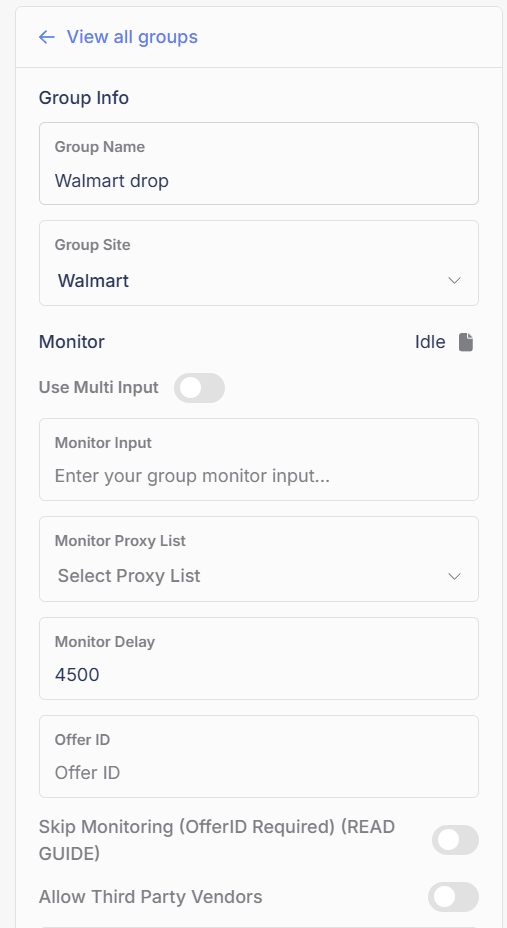
**Task group settings (left panel):**

<figure><img src="/files/P4i4gbpmWYDIpXfVP921" alt="Task group settings, top half: Group Info and Monitor fields" width="380"><figcaption><p>Top of the settings panel: group info, monitor input, proxy list, and delay.</p></figcaption></figure>

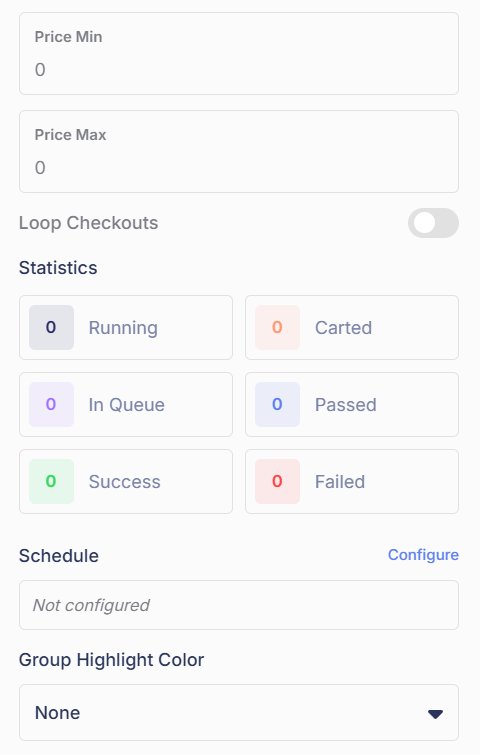
<figure><img src="/files/4ymZNZ5moDGieWpIRhoD" alt="Task group settings, bottom half: Skip Monitoring, Third Party Vendors, Price Min/Max, Loop Checkouts" width="380"><figcaption><p>Bottom of the panel: toggles stay OFF and prices stay blank for queue drops.</p></figcaption></figure>

| Setting                            | Value                                             | Notes                                                                                                             |
| ---------------------------------- | ------------------------------------------------- | ----------------------------------------------------------------------------------------------------------------- |
| Use Multi Input                    | OFF                                               | Queue products will not work with multi-input groups                                                              |
| Monitor Input                      | Product SKU (e.g. `17115306492`)                  | The numeric ID from the Walmart product URL. Can be left blank and added near drop time.                          |
| Monitor Proxy List                 | Your monitor list, or simply your task proxy list | A separate monitor list is optional                                                                               |
| Monitor Delay                      | `4500` (default)                                  | Default is fine                                                                                                   |
| Offer ID                           | Leave blank                                       | Not needed for queue drops                                                                                        |
| Skip Monitoring (OfferID Required) | OFF                                               | Not needed for queue drops                                                                                        |
| Allow Third Party Vendors          | OFF                                               | Not needed for standard Walmart drops                                                                             |
| Price Min                          | Leave blank                                       | Minimum price of 1 item (before tax and shipping). Blank means no minimum                                         |
| Price Max                          | Leave blank                                       | Maximum price of 1 item (before tax and shipping). Blank means no maximum. Whole dollars only: round up, no cents |
| Loop Checkouts                     | OFF                                               | Do not enable for Walmart queue drops (see [FAQ](#faq))                                                           |

**Statistics panel:**

<figure><img src="/files/Ffmo5VXveQWaVtmLgKAi" alt="The task group statistics row" width="287"><figcaption><p>The statistics double as filters. If tasks look missing, check that a filter is off.</p></figcaption></figure>

The task group shows live statistics: Running, Carted, In Queue, Passed, Success, and Failed. These double as filters.

{% hint style="warning" %}
**Tasks look like they disappeared?** Make sure one of the statistics filters is not turned on. Tasks are almost never randomly deleted; the view is just filtered.
{% endhint %}

**Schedule (optional):** you can schedule tasks to auto-start. If using this, schedule them to start at least 20 minutes before the drop. Most users start tasks manually.

## Task Creation

Once your task group is configured, create tasks inside it.

{% stepper %}
{% step %}

#### Open Create Tasks

Click the **+** button in the task group view to open **Create Tasks**.
{% endstep %}

{% step %}

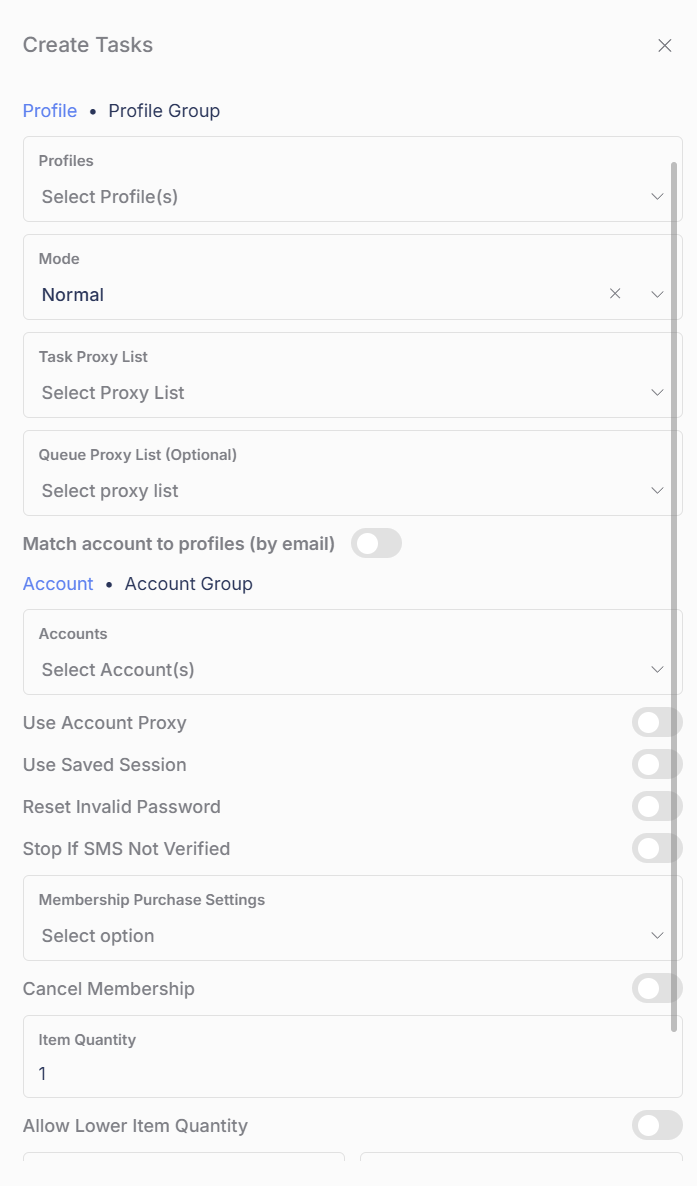
#### Configure profiles and proxies

The Profiles and Accounts pickers each have two tabs: **Profile / Profile Group** and **Account / Account Group**. Click the group tab to select the groups you made earlier instead of picking entries one by one.

<figure><img src="/files/jaK7giSxmd8VQs6FH7l8" alt="The Create Tasks window" width="400"><figcaption><p>The Create Tasks window.</p></figcaption></figure>

| Setting                              | Value                                          | Notes                                                                                                                                  |
| ------------------------------------ | ---------------------------------------------- | -------------------------------------------------------------------------------------------------------------------------------------- |
| Profiles                             | Select your Profile Group                      | Each task gets a unique profile                                                                                                        |
| Task Proxy List                      | Your residential proxy list                    |                                                                                                                                        |
| Queue Proxy List (optional)          | Your ISP proxy list                            | Leave blank if not using queue proxies                                                                                                 |
| Match account to profiles (by email) | ON                                             | Keeps account-profile pairing consistent                                                                                               |
| Accounts                             | Select your Account Group                      |                                                                                                                                        |
| Use Account Proxy                    | OFF                                            | Never enable this                                                                                                                      |
| Use Saved Session                    | OFF (during initial login)                     | Turn ON after sessions exist. See the [release guide](/modules/walmart/walmart-release-guide.md)                                       |
| Reset Invalid Password               | ON (recommended)                               | If an account gets flagged, the bot auto-resets the password and stores it                                                             |
| Stop If SMS Not Verified             | ON, unless running SMS-less on purpose         | Stops tasks on accounts without SMS so they do not waste proxy data. See [SMS verification at checkout](#sms-verification-at-checkout) |
| Membership Purchase Settings         | See [Walmart+ Membership](#walmart-membership) | Only select a tier if announced as required                                                                                            |
| Cancel Membership                    | OFF                                            | Cancels Walmart+ on task start. See [Walmart+ Membership](#walmart-membership)                                                         |
| Item Quantity                        | `1`                                            | Units the task attempts to check out. On Walmart this is not automatically a ceiling; pair it with Allow Lower Item Quantity below     |
| Allow Lower Item Quantity            | ON                                             | Makes Item Quantity a ceiling: the task takes the most it can get, up to your number, instead of failing. OFF means all or nothing     |
| Retry Delay                          | `4500`                                         | Default is fine. Has no effect on queue entry speed                                                                                    |
| Task Qty                             | `1`                                            | Always 1. Creates one task per profile                                                                                                 |
| {% endstep %}                        |                                                |                                                                                                                                        |

{% step %}

#### Create the tasks

Click **Create Tasks**.
{% endstep %}
{% endstepper %}

**Important:**

* One task per profile per product. Never run the same profile on multiple tasks for the same SKU.
* One account per product. Never use the same Walmart account on more than one task for the same drop.
* You can reuse the same accounts and proxies across groups for different products.

## Scaling Guidelines

**How many tasks do you need?** The average user runs 800 to 1,200 tasks now, and you realistically need that range to be competitive. It is very hard to hit on a dozen or so accounts.

**How many per instance?** Keep each instance in the 1,000 to 1,500 range. This recommendation comes from server providers shining a light on OS networking limitations: when every task tries to enter the queue at the same moment, the operating system itself becomes the bottleneck. The hard limit is 2,000 tasks per instance. If you want to run more, add a second instance and run it on a separate network.

| Factor             | Recommendation                                                                                      |
| ------------------ | --------------------------------------------------------------------------------------------------- |
| Tasks per drop     | 800-1,200 is the competitive range                                                                  |
| Tasks per instance | 1,000-1,500. The hard limit is 2,000                                                                |
| Multiple instances | Can be added from the dashboard, up to the cap of 2. Run them on separate networks for best results |
| Proxy diversity    | Use multiple residential providers to avoid IP pool overlap                                         |

{% content-ref url="/pages/KgeKJxFOnpEnFpfYaSKR" %}
[Instances](/online-dashboard/subscription/instances.md)
{% endcontent-ref %}

**Scale your infrastructure with your task count.** More tasks only helps if your network and proxies keep up:

* Network bottleneck: hundreds or thousands of tasks entering queue at once hammer your bandwidth and your OS's networking limits. This is why the per-instance recommendation exists.
* Proxy overlap: residential pools are only so large. More tasks means more IP overlap, both within your own tasks and with other users on the same provider.
* Queue loops and rate limits: Walmart flags repeated requests from the same or similar IPs. Piling tasks onto the same pool amplifies this.

A clean 1,000-task instance on good proxies and a solid connection beats 2,000 tasks choking one network.

## Walmart+ Membership

Some Walmart drops require a Walmart+ membership to purchase. This varies from drop to drop.

**How it works:**

* In the Create Tasks panel, the **Membership Purchase Settings** dropdown has three options: Full Membership (monthly), Trial, and $1 W+ (if eligible).
* Selecting a tier automatically purchases the membership when tasks start, even if the product is out of stock.
* Free trials and $1 trials do not work when Walmart+ is required. If Walmart+ is required and you are using a trial, you may see `unknown response [400]`.

**Cancel Membership:**

* With **Cancel Membership** ON, the task immediately cancels the Walmart+ membership on the account when it starts.
* Combined with a Membership Purchase Settings tier, the membership is bought and then cancelled right away, so you get Walmart+ for the drop without being left on a recurring membership.
* Leave it OFF if you want to keep Walmart+ active on your accounts.

**What to do:**

* Check Discord announcements before every drop. We will try to tell you if Walmart+ is required.
* If Walmart+ is required, select Full Membership (monthly).
* If Walmart+ is not required, leave the setting unselected.
* Do not blindly select a membership tier every week, or you will be charged for memberships you do not need.

## SMS verification at checkout

Walmart switches SMS enforcement on and off. When it is on, an account needs a phone number attached before it can proceed to checkout. When it is off, SMS-less accounts check out normally.

{% hint style="warning" %}
**This flips with no warning, and drop time is when it is most likely to flip.** Check the Discord announcements before a drop rather than assuming last week's behaviour still applies. Right now, SMS-less accounts are checking out.
{% endhint %}

What that means in practice:

* **Accounts with SMS attached always work.** They are unaffected either way, so they are the safe option to run.
* **SMS-less accounts only work while enforcement is off.** They are checking out at the moment, but there is no guarantee that holds for a given drop. If Walmart flips enforcement back on, they get blocked.
* **When enforcement is on, blocked tasks show `SMS Required`.** On older versions of Refract this status reads **Not SMS Verified**.
* **Accounts that had their number removed need re-verifying.** Walmart drops a number from an account without warning, and emails you asking to add a new phone number. Those accounts check out fine while enforcement is off, but need SMS again if it comes back.

Two task features help you handle it:

* **Stop If SMS Not Verified:** with this ON, tasks on accounts without SMS stop early instead of running into the checkout block, so they do not waste proxy data. Leave it **OFF if you are running SMS-less accounts intentionally**, or it will stop the very tasks you meant to run.

<figure><img src="/files/yMHXA8n4xaeIiKysI8DC" alt="The Stop If SMS Not Verified toggle in Create Tasks" width="420"><figcaption><p>The toggle in Create Tasks. ON stops tasks on accounts without SMS.</p></figcaption></figure>

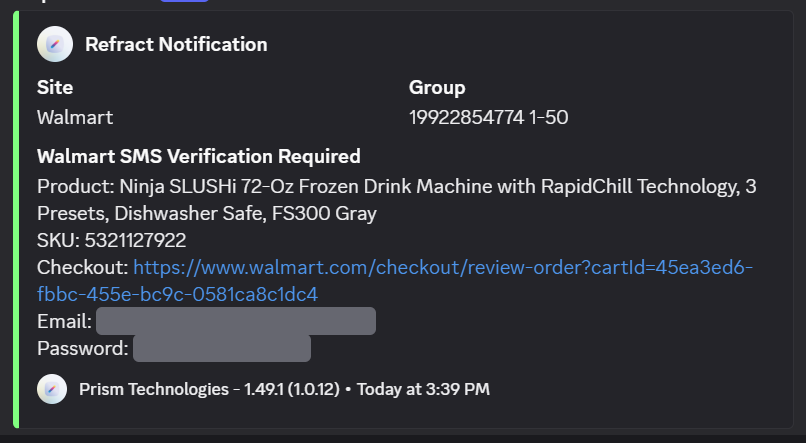
* **Checkout URL webhooks:** if a task does get blocked, the bot shows the status and sends a checkout URL to your **Notifications** webhook, so you can finish the checkout manually and enter the SMS code yourself. Set the Notifications webhook in **Settings > General** or you will not receive these.

<figure><img src="/files/gX3dauJE61y57I4ZLJ1t" alt="A Refract Notification webhook message with the product, SKU, checkout URL, and account login" width="560"><figcaption><p>The webhook message. Open the checkout link, log in with the listed account, and finish the order manually.</p></figcaption></figure>

Set your Notifications webhook in **Settings > General** before the drop; without it, no checkout URL arrives. See [Settings](/general-setup/settings.md#webhooks) for how to set it up.

### Finding out which accounts need verifying

You do not need to work this out by hand. Turn **Stop If SMS Not Verified** on and run your tasks: any account without SMS stops with the status instead of pushing on to the checkout block, so the run itself tells you which accounts need verifying.

**You do not need a live product or a real checkout to do this.** Leave the monitor input blank and start the tasks with the toggle ON. There is no separate check-only mode, but running with no monitor input is the same thing in practice: the accounts get checked and the unverified ones stop, without going for a product. Run it whenever you like, well away from a drop.

This is also how to catch accounts that were verified before and need re-verifying, the ones Walmart removed a number from.

To check a specific batch, paste the list of logins into the [account search](/general-setup/accounts.md#find-accounts-in-the-list) and the Accounts tab filters down to just those.

### Where to get SMS verification

We have no advice here, the same way we have no [proxy provider recommendations](/introduction-to-botting/proxies.md#why-we-do-not-recommend-providers). Getting numbers to verify accounts with is your side of the setup, and your cook group is the place to ask.

This is not us dodging the question. SMS on Walmart is genuinely tricky, and the risks are real:

* **Every provider reuses numbers.** There is no service that sells you a number nobody else will ever be given. Numbers get recycled back into the pool and handed to someone else later.
* **Reused numbers get accounts blocked.** When the same number turns up across many Walmart accounts, Walmart flags them.
* **Reused numbers get accounts hacked.** Whoever holds that number next can run Walmart's SMS recovery on any account still attached to it and take the account, with your saved payment methods on it.

There is no method we know of that makes a number permanently yours, so treat a one-time purchase that is never reused as something nobody can promise you. Beyond using one of the main SMS providers, we have no further suggestions.

## Skip Monitoring & Offer ID

You do not need Skip Monitoring or an Offer ID for Walmart queue drops. It is strongly advised to never use them for queue drops.

**What they are for:** first-come-first-serve (FCFS) restocks. These are non-queue drops where speed is critical and you want to spam add-to-cart the instant a product goes live.

**When to use them:** only if explicitly instructed in Discord, for a rare non-queue drop or a specific FCFS restock.

**How they work (if needed):**

1. Add the PID (SKU) to the monitor input.
2. Add the OID (Offer ID) in the Offer ID field. Both PID and OID are required. Skip Monitoring will not function with only one.
3. At drop time, enable Skip Monitoring to force add-to-cart attempts.

## Errors

These are the Walmart errors that can hit at any time: during setup, on a random restock, or mid-drop. Errors that only happen on drop night, like Access Denied (456) and the queue statuses, live in the [release guide](/modules/walmart/walmart-release-guide.md#common-errors-and-fixes).

### Invalid Card Details / Max Card Attempts

Both of these are an authorization block at the bank or issuer level, and there is nothing staff can do about them. The fixes below are all on your end.

**Why you may be seeing this:**

* Even if your cards work fine on other sites, Walmart may reject them if you reuse the same card across multiple profiles or tasks.
* Each task sends an "invisible" $0.00 authorization charge to your bank when adding the card.
* Too many authorization attempts in a short time cause your bank to temporarily block the card on Walmart. "Max Card Attempts Reached" means Walmart has stopped accepting further authorization attempts on the account for now.

**How authorization charges work:**

* When you add a card to an account, Walmart sends an authorization charge.
* Running many tasks at once creates multiple rapid charges.
* Most card providers treat this as suspicious and temporarily stop further authorizations. This is a fraud-prevention feature, not usually a permanent ban.
* Generating new cards from the same provider does not get around this. The blocks are enforced at the custodial (bank or issuer) level, not the individual card level.
* American Express (AMEX) is the worst with this. Some people can now only add a card to one account per day before getting blocked.

**How to fix it:**

* If your card details are correct, you likely just need to let the card cool off.
* The block usually clears on its own after some time, depending on your bank.
* Once cleared, you can start tasks again with that card.

**Tips to avoid it:**

* Add cards to your accounts extremely slowly. Spreading them out over time is the best way to avoid authorization blocks, and this matters most with AMEX (as little as one card per account per day).
* Limit to one task per card during setup to reduce authorization spam.
* Reuse the same card on the same Walmart account whenever possible.
* If a card is already saved on the account, Walmart won't resend the authorization charge.

### Payment Failure

Your payment was declined by your bank, likely flagged as suspicious. Contact your bank to whitelist Walmart, try an alternative card, or wait and retry later.

### Invalid Address Details

Walmart has rejected your shipping address. The bot is only showing you Walmart's answer, so the fix is in the address, not in the bot.

* **Test it manually first.** Open Walmart in a browser and paste the exact info from the bot's profile into each address field, exactly as the bot has it. If Walmart blocks it there too, that address will never work in the bot either.
* Use their suggested format (the bot will do this too if available) or adjust your jig if blocked.
* If you see "Invalid Address Details" in the bot, it means Walmart did not give an override option or a suggested address.
* **Identical jigs can behave differently.** Walmart may accept one variant and reject another jigged the exact same way, like one 3-letter prefix passing while another fails on the same street address. There is no known pattern; Walmart can be overly picky for no reason. Drop the variants Walmart rejects and keep running the ones it accepts.

### SMS Required

Walmart is blocking the checkout because the account has no phone number attached, which means SMS enforcement is currently on. On older versions of Refract this status reads **Not SMS Verified**.

Verify the account with SMS, or run accounts that already have a number on them. Enforcement comes and goes, so an account that checked out yesterday can be blocked today.

Two task features help: **Stop If SMS Not Verified** in Create Tasks stops these tasks early so they do not waste proxy data, and the bot sends a checkout URL to your **Notifications** webhook when a task is blocked, so you can finish manually. See [SMS verification at checkout](#sms-verification-at-checkout).

### Unknown Response \[400]

Often means Walmart+ is being required on a product but isn't on your account. See [Walmart+ Membership](#walmart-membership). Free trials and $1 trials do not work.

### Walmart+ Not Allowed

The account is not eligible for the selected Walmart+ tier, or there is an issue with the account. Try a different membership tier, or purchase W+ manually on the account through Walmart's website.

### Setting Cookies / Solving PX Captcha

The bot is generating the required PX cookies or solving a PX challenge. Both are normal, especially during login. If tasks loop between "Setting Cookies" and "Solving PX Captcha" without progressing, your proxies are likely flagged. Switch to fresh residential proxies, or toggle Saved Session OFF, restart, and retry.

### Reset Locked Walmart Account

Refract detected that the account was locked and automatically reset the password. If you have Reset Invalid Password enabled, the new password is stored in the Accounts tab automatically. No manual action needed.

### Proxy Error

Your proxy is dead, banned, out of bandwidth, or the provider is offline.

### Connection Error

Typically due to proxy or internet issues. Your bot couldn't reach Walmart.

### Request Timed Out

The task did not receive a response from Walmart, usually caused by proxy issues or Walmart server load. Reduce task count, check your proxies, or try local IP if running very few tasks.

### Drop-night errors

Access Denied (456), the queue statuses, and the rest of the drop-specific errors are covered here:

{% content-ref url="/pages/urE0huGXC2d2RTatOYUT" %}
[Walmart Release Guide](/modules/walmart/walmart-release-guide.md)
{% endcontent-ref %}

## FAQ

### Sessions & Login

<details>

<summary>Do I need to generate new sessions every week?</summary>

No. Saved sessions can last for weeks. Only generate a new session if your saved session stops working (tasks fail to reach "Waiting for Product" with Saved Session ON).

</details>

<details>

<summary>What if my IMAP is not picking up codes?</summary>

First, check the email inbox and confirm a code actually arrived. Walmart can be slow to send codes or may not send them at all, and on drop day it sometimes stops sending codes entirely. No code in the inbox means Walmart never sent one; that is not a bot or IMAP problem. If codes are arriving but not being submitted, check that your IMAP login is correctly configured in Settings and that emails are being forwarded properly (especially for Outlook, which must be direct forwarding, not rule-based).

</details>

<details>

<summary>Do I need to log into my accounts manually in the Accounts tab?</summary>

No. Walmart accounts log in via tasks. When you start tasks, the bot handles login automatically. The Accounts tab login button shows "Login via Tasks" for Walmart accounts that have not logged in yet.

</details>

<details>

<summary>If I move Refract to a new PC, do I need to re-login all accounts?</summary>

If you export and import your Refract app data, your saved sessions transfer with it. You should not need to re-login unless the sessions have expired.

</details>

<details>

<summary>Is it normal for accounts to go through 2FA multiple times before reaching "Waiting for Product"?</summary>

It can happen. As long as the task eventually reaches "Waiting for Product," the login succeeded.

</details>

### Proxies

<details>

<summary>Should I use sticky or rotating residential proxies?</summary>

Use sticky/static/hard residential proxies for Walmart tasks.

</details>

<details>

<summary>Which proxy providers or resi types are working best?</summary>

We do not know, genuinely. The bot has no visibility into which providers people use or what kind of resis they run. To the bot and to our team, a proxy is a proxy. Which providers are performing is community knowledge that changes week to week; your cook group tracks it, we cannot.

</details>

<details>

<summary>What should my proxy session time be?</summary>

Set it as long as your provider allows. If a session rotates mid-queue anyway, that is fine and does not break anything.

</details>

<details>

<summary>Do I need a separate monitor proxy list?</summary>

No. You can use the same proxy list for your tasks and your monitor, on Walmart and every other site. A separate monitor list is only worth it if you are running Skip Monitoring and spamming hard.

</details>

<details>

<summary>Should I use ISP or residential proxies for the monitor?</summary>

Either works. ISP proxies do not consume bandwidth-metered data; residential proxies rotate more and can dodge the drop-time IP bans better, but burn data while monitoring. Whichever you run, expect monitor bans near drop time either way (see the release guide's monitor section), and remember the global monitor has you covered at drop time.

</details>

<details>

<summary>How many GB of residential data do I need?</summary>

Around 2-4 GB per 200 tasks per drop is a fair estimate. Scale it with your task count: a 1,000-task setup lands around 10-20 GB per drop.

</details>

<details>

<summary>Can I use the same proxy list for both task proxies and queue proxies?</summary>

You can, but it is not ideal. If you use queue proxies, they should ideally be ISP proxies separate from your residential task proxy list to maximize diversity.

</details>

<details>

<summary>Can I use the same monitor proxy list as my queue proxy list?</summary>

They serve different purposes. Monitor proxies check for stock; queue proxies enter the queue. You can use the same ISP list for both, but keep in mind monitor proxies need to be unbanned in order to detect stock.

</details>

<details>

<summary>What if my monitor ISPs get banned?</summary>

Rotate to fresh ISP proxies. If all your ISPs are banned, you can temporarily use residential proxies for monitoring, but this consumes more data and is slower. Near drop time, monitor bans are expected and largely covered for you; see the release guide's monitor section.

</details>

<details>

<summary>Can I change proxies while tasks are running?</summary>

Yes. You can assign a new proxy list without stopping anything. The swap is not instant: each task keeps its current proxy until it hits a block or error, then rotates onto the new list. If you need the new list applied immediately, restart your tasks. This applies to both monitor and task proxies and is intended behavior.

</details>

<details>

<summary>Do I need proxies if I'm only running a few tasks?</summary>

Users with fewer than 5 tasks can technically run on local IP, but this is a very small setup and you will likely not hit. Proxies are still recommended.

</details>

### Accounts & Profiles

<details>

<summary>Do SMS-less accounts work?</summary>

Sometimes, and it depends on whether Walmart has SMS enforcement switched on. Right now it is off and SMS-less accounts are checking out, but that flips with no warning and drop time is when it is most likely to flip. Check Discord announcements before a drop.

* Accounts with SMS attached always work, whichever way enforcement is set. That is the safe option.
* Accounts that had a phone number which was later removed (Walmart emails you asking to add a new number) need re-verifying with SMS whenever enforcement is on.
* When enforcement is on, blocked tasks show `SMS Required`, or **Not SMS Verified** on older versions of Refract.
* In Create Tasks, **Stop If SMS Not Verified** stops tasks on accounts without SMS so they do not waste proxy data. Leave it OFF if you are running SMS-less accounts on purpose. See [SMS verification at checkout](#sms-verification-at-checkout).

We have no recommendations on generating Walmart accounts or on getting them SMS verified. That is your cook group's territory.

</details>

<details>

<summary>Can I use the same accounts and proxies for multiple products?</summary>

Yes. You can reuse accounts, profiles, and proxies across different task groups for different products. Never reuse the same account for the same product in more than one task.

</details>

<details>

<summary>Can I run the same account for 2 different SKUs in the same drop?</summary>

Yes. Create separate task groups for each SKU and use the same accounts/profiles across them. Each account should only appear once per task group. Multi-SKU also works for Walmart queue drops as of July 29, 2026, but it is not multi-queue: all tasks in the group join the first queue that picks up, so separate groups are still the way to target multiple queues at once.

</details>

<details>

<summary>Does the profile email need to match the Walmart account email?</summary>

No. The profile contains your checkout info (card, address). The account is your Walmart login. They are separate.

</details>

<details>

<summary>Does Refract update my Walmart account with profile info automatically?</summary>

Yes. On task start, Refract automatically adds your profile's shipping address and card info to the Walmart account. You do not need to manually add this on Walmart's website.

</details>

<details>

<summary>Does the phone number in my profile need to match the one on my Walmart account?</summary>

No, they do not need to match.

</details>

<details>

<summary>Do I need to warm/age new Walmart accounts before drops?</summary>

It is not required. Some users believe farming activity helps reduce cancellations, but there is no guaranteed method.

</details>

<details>

<summary>Does Refract help create Walmart accounts?</summary>

No. Refract does not create accounts. Accounts with SMS attached are the safe option, since they check out whether or not Walmart is enforcing SMS. See "Do SMS-less accounts work?" above.

</details>

### Task Setup

<details>

<summary>What SKU do I use?</summary>

The product SKU is the numeric ID from the Walmart product URL (e.g. `165545420` from `walmart.com/ip/d/165545420`). Find the SKU from cookgroups, TikTok, X, or other community sources before the drop.

</details>

<details>

<summary>Do I need an Offer ID?</summary>

No. Offer IDs and Skip Monitoring are not needed for queue drops. Only use them if we specifically announce it in Discord.

</details>

<details>

<summary>Does Loop Checkouts work on Walmart?</summary>

We do not recommend enabling Loop Checkouts for Walmart. It almost always does not work on Walmart queue drops.

</details>

<details>

<summary>What does "Use Account Proxy" do?</summary>

It forces the task to use whatever proxy is assigned to the account in the Accounts tab. Never enable this. You should never set proxies on accounts directly, and this toggle should always be OFF.

</details>

<details>

<summary>Can I use Multi-Input/Multi-SKU for Walmart?</summary>

No. Multi-Input does not work for Walmart queue drops. Do not try it. Create separate task groups for each SKU.

</details>

<details>

<summary>What does "Allow Lower Item Quantity" do?</summary>

It turns Item Quantity into a ceiling rather than an exact number. With it ON, the bot accepts any available quantity up to what you set, so if you ask for 5 and only 3 are available, it checks out 3 instead of failing. Walmart currently allows a max of 5 per checkout.

Every other site does this automatically. Walmart is the one place you have to turn it on yourself, so leave it ON unless you specifically want all-or-nothing. See [How Item Quantity works](/general-setup/task-creation.md#how-item-quantity-works).

</details>

<details>

<summary>What does Retry Delay do? Does it affect queue time?</summary>

Retry Delay controls how long the bot waits before retrying after an error. It has no effect on queue entry speed or queue time. Leave it at the default 4500.

</details>

<details>

<summary>Is "Max Price" before or after tax and shipping?</summary>

Max Price is the total of just the item, before tax and shipping.

</details>

### Walmart+ Membership

<details>

<summary>If my account already has Walmart+, do I need to select anything in task creation?</summary>

No. If Walmart+ is already active on the account, leave the Membership Purchase Settings unselected. If you accidentally select a tier on an account that already has W+, the bot detects it and skips the purchase. It will not charge you again.

</details>

<details>

<summary>What does the "$1 W+ (if eligible)" option mean?</summary>

This attempts to purchase a $1 Walmart+ promotional offer. Not all accounts are eligible, and this option does not always work for drops that require W+. If W+ is required, Full Membership (monthly) is the safest choice.

</details>

<details>

<summary>How do I know if Walmart+ is required for tonight's drop?</summary>

Check Discord announcements before every drop. We will always announce whether W+ is required.

</details>

### Cancellations

<details>

<summary>Why are my Walmart orders getting cancelled?</summary>

Order cancellations are handled by Walmart's fraud and policy review, based on your account, profile, proxy, and payment method. There is no Refract setting that controls this and no guaranteed fix. Your cook group is the best source for what is currently helping reduce cancellations.

</details>

<details>

<summary>Can Refract cancel Walmart orders for me?</summary>

No. Refract does not have a feature to cancel Walmart orders. Manage orders directly through Walmart.

</details>


---

# Agent Instructions
This documentation is published with GitBook. GitBook is the documentation platform designed so that both humans and AI agents can read, navigate, and reason over technical content effectively. Learn more at gitbook.com.

## Querying This Documentation
If you need additional information that is not directly available in this page, you can query the documentation dynamically by asking a question.

Perform an HTTP GET request on the current page URL with the `ask` query parameter, and the optional `goal` query parameter:

```
GET https://help.refractbot.com/modules/walmart/walmart-setup-guide.md?ask=<question>&goal=<endgoal>
```

`ask` is the immediate question: it should be specific, self-contained, and written in natural language.
`goal` is optional and describes the broader end goal you are ultimately trying to accomplish on behalf of the user. GitBook uses it to tailor the answer towards what is most useful for that goal.

The response will contain a direct answer to the question and relevant excerpts and sources from the documentation.

Use this mechanism when the answer is not explicitly present in the current page, you need clarification or additional context, or you want to retrieve related documentation sections.