> For the complete documentation index, see [llms.txt](https://help.refractbot.com/llms.txt). Markdown versions of documentation pages are available by appending `.md` to page URLs; this page is available as [Markdown](https://help.refractbot.com/modules/target/extension-shape-generation.md).

# Extension (Shape Generation)

The Refract extension is a Chromium browser extension that harvests Shape cookies for Target. This page covers how it works, how to install it, and how to harvest both cookie types.

{% hint style="info" %}
**The in-bot harvester has been passing Shape better than the extension.** Start there if you can, and run both at the same time if you want. See [In-Bot (Shape Generation)](/modules/target/in-bot-shape-generation.md).
{% endhint %}

## How it actually works

Understanding this upfront prevents almost every "is it broken?" question:

* The extension repeatedly attempts add to cart (or login) on a Target page in your browser. It **never completes** those actions. It intercepts each request and saves the Shape cookie from it for your tasks to use later.
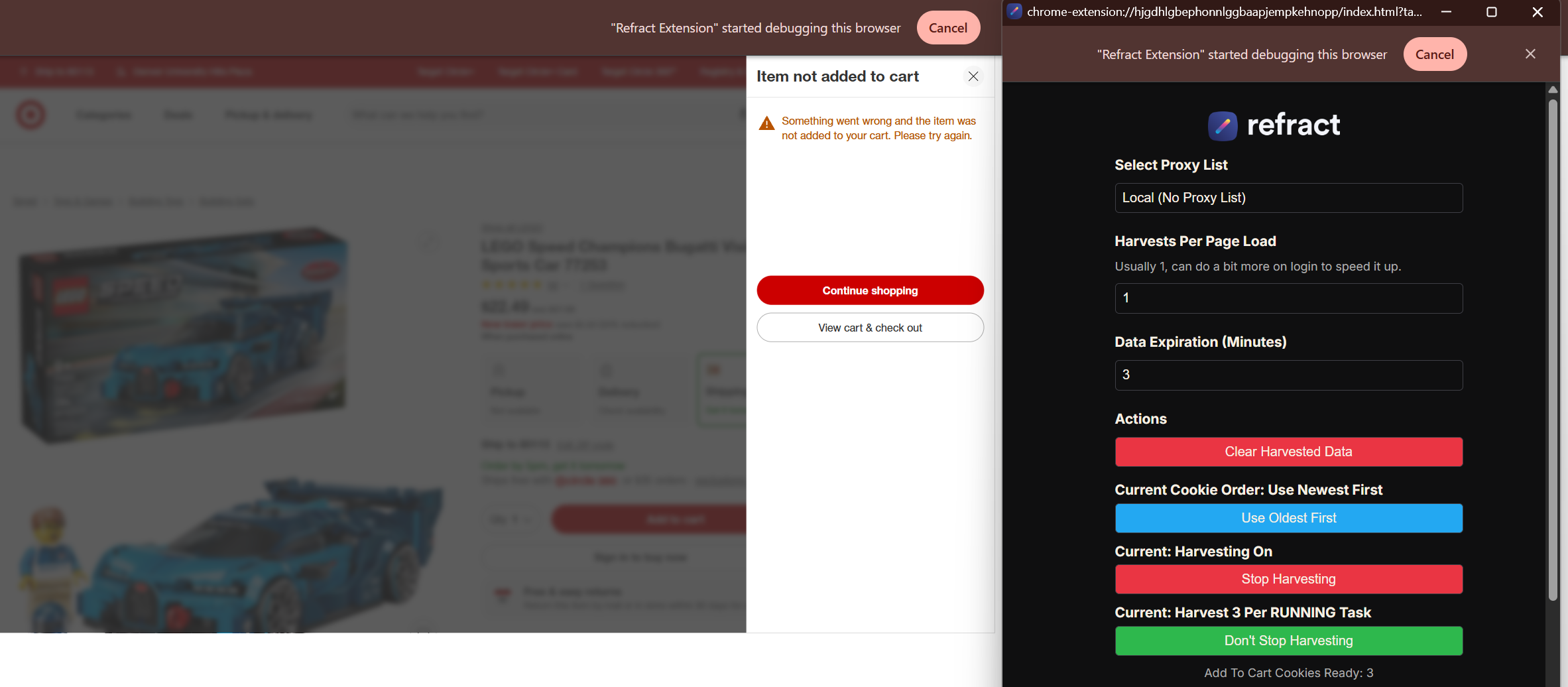
* Because the cart never completes, you will constantly see **"Something Went Wrong, Try Again!"** on the product page. That is not an error. That is the harvesting working.
* The browser will **not sign you in** while harvesting login cookies, and you will see a random email and password being typed automatically. Normal.
* The browser may **show the wrong product** while harvesting. Ignore it; it does not affect harvesting.
* Each protected request from your tasks consumes one cookie, so your harvested count goes down as tasks work. The target is about 3 cookies per running task, and by default the extension harvests exactly that: 3 per running task.

**Hard requirements:**

* A Chromium browser. Chrome, Edge, Brave, and Vivaldi all work; almost any Chromium browser does. **Opera does not** (it blocks this extension type), and **Firefox and Safari do not** (not Chromium).
* The Target tab must stay at least partially visible on your screen. The extension popup can be minimized, but the Target page cannot be hidden or closed.
* On a server, a display connection must remain the entire time. That means you cannot disconnect from your server: closing your RDP session counts as disconnecting the display, and harvesting stops. Stay connected.
* One extension instance per browser user/profile. To run more harvesters, create more users of your browser (see [Running multiple harvesters](#running-multiple-harvesters)) or use different Chromium browsers.

## Install the extension

{% hint style="info" %}
**Use a brand new Chrome profile for the extension.** Other extensions can interfere with it. Click your profile picture in the browser's top right and add a new profile. The profile does not need to be signed in to the browser itself: choose "Continue without an account" and harvest on the signed-out profile.
{% endhint %}

{% tabs %}
{% tab title="Windows" %}
{% stepper %}
{% step %}

#### Download the extension

Download the latest version: [cdn.prismaio.com/refract/extension/latest.zip](https://cdn.prismaio.com/refract/extension/latest.zip)
{% endstep %}

{% step %}

#### Extract the zip

Open your Downloads folder in File Explorer, right-click the downloaded zip, and choose **Extract All**, then **Extract**. You end up with a normal folder containing a `build` folder inside. Remember where it is.

<figure><img src="/files/WqM39w6q5iL0EJWawtan" alt="The extracted folder showing the build folder inside"><figcaption><p>After extracting, you have a folder with build inside it.</p></figcaption></figure>
{% endstep %}

{% step %}

#### Enable Developer Mode

Type `chrome://extensions` into the address bar and press Enter, then turn on the **Developer mode** toggle in the top right. Three new buttons appear, including **Load unpacked**.

<figure><img src="/files/aKhlaWZGNGy6yAp3l27m" alt="chrome://extensions with Developer mode on and Load unpacked visible"><figcaption><p>Developer mode on. Load unpacked appears in the top left.</p></figcaption></figure>
{% endstep %}

{% step %}

#### Load the extension

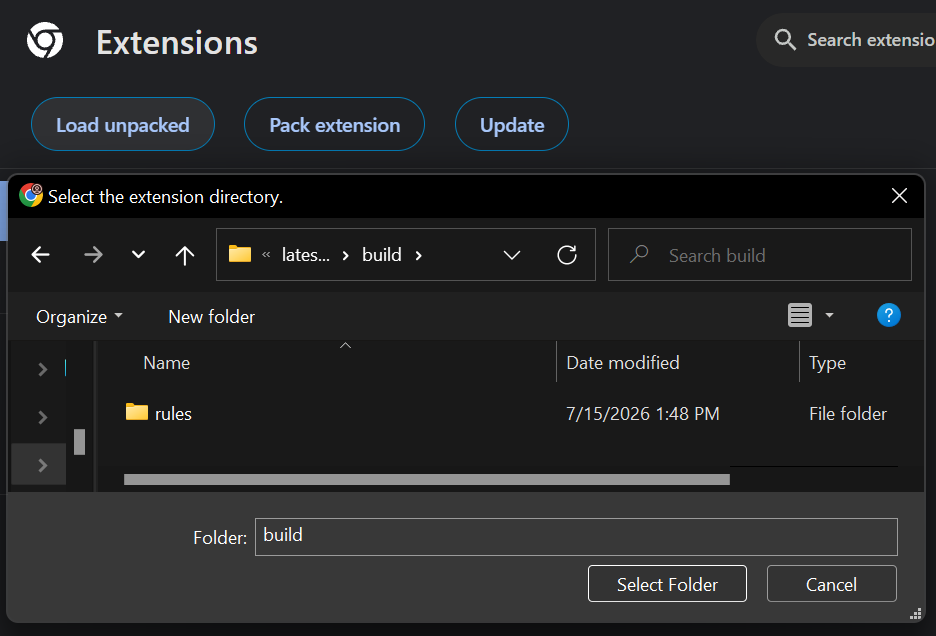
Click **Load unpacked**. A folder picker opens:

1. Navigate into the extracted folder.
2. **Double-click the `build` folder to go inside it.** The **Folder:** field at the bottom of the picker should now say `build`.
3. Click **Select Folder**.

You need to be inside the `build` folder when you click Select Folder. Do not click any of the files or folders inside it, and do not select the outer folder. This step is where most people go wrong.

<figure><img src="/files/dDj4jQouYbZ2Q2GtMACu" alt="The Windows folder picker inside the build folder" width="500"><figcaption><p>Inside the build folder, with the Folder field showing build. Now click Select Folder.</p></figcaption></figure>
{% endstep %}

{% step %}

#### Confirm it is installed

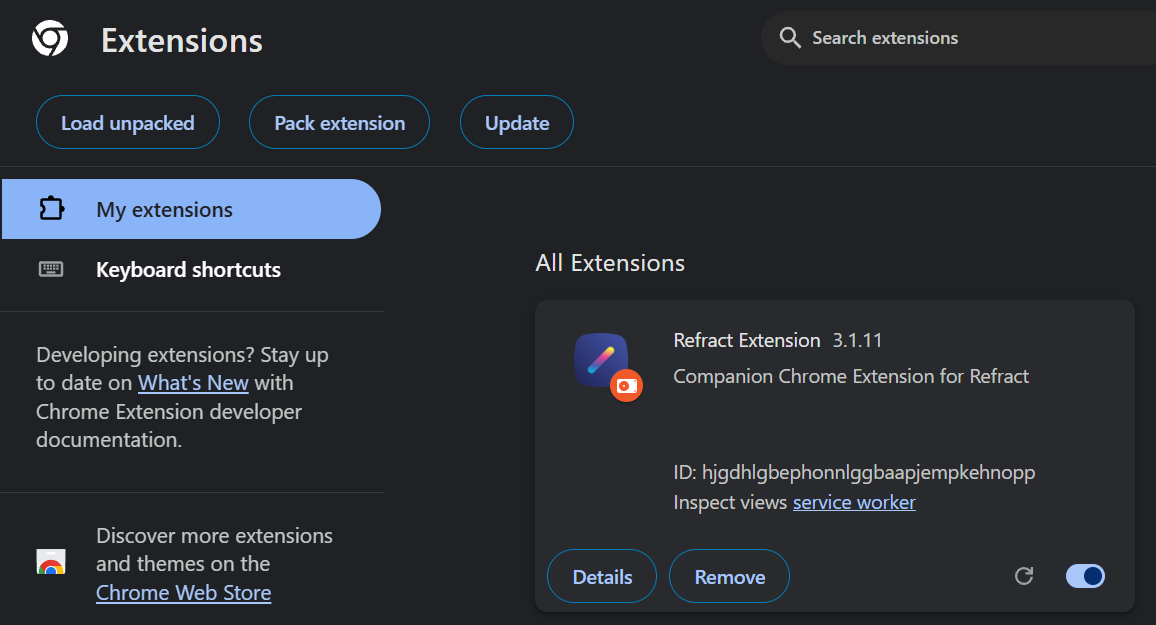
The Refract extension now appears in your extensions list and behind the puzzle icon in the toolbar.

<figure><img src="/files/EFVpmHkvKLvtfaec1pKn" alt="The Refract extension visible in the extensions hub"><figcaption><p>Installed. You will find it behind the puzzle icon in the toolbar.</p></figcaption></figure>
{% endstep %}
{% endstepper %}
{% endtab %}

{% tab title="Mac" %}
{% stepper %}
{% step %}

#### Download the extension

Download the latest version: [cdn.prismaio.com/refract/extension/latest.zip](https://cdn.prismaio.com/refract/extension/latest.zip)
{% endstep %}

{% step %}

#### Extract the zip

Open your Downloads folder in Finder and double-click the zip. macOS extracts it right there with Archive Utility, leaving a folder with a `build` folder inside.

If you downloaded with Safari, the zip may already be extracted for you: Safari auto-opens "safe" files by default, so look for the extracted folder instead of a zip.
{% endstep %}

{% step %}

#### Enable Developer Mode

In your Chromium browser, type `chrome://extensions` into the address bar and press Enter, then turn on the **Developer mode** toggle in the top right. Three new buttons appear, including **Load unpacked**.
{% endstep %}

{% step %}

#### Load the extension

Click **Load unpacked**. A Finder-style picker opens:

1. Navigate into the extracted folder.
2. **Double-click the `build` folder to go inside it.**
3. Click **Select**.

You need to be inside the `build` folder when you click Select. Do not pick any of the files or folders inside it, and do not select the outer folder. This step is where most people go wrong.
{% endstep %}

{% step %}

#### Confirm it is installed

The Refract extension now appears in your extensions list and behind the puzzle icon in the toolbar.
{% endstep %}
{% endstepper %}
{% endtab %}
{% endtabs %}

## Open the harvester

{% stepper %}
{% step %}

#### Go to Target

Navigate to [target.com](https://www.target.com/) in the browser with the extension installed.
{% endstep %}

{% step %}

#### Open the extension

Click the puzzle icon in the toolbar, then click the Refract extension. The harvester window opens.

<figure><img src="/files/TBTTxPZbNLlkH0IyugVm" alt="The extension connect dialog"><figcaption><p>Leave this alone. Clicking Cancel disconnects the extension and stops cookie generation.</p></figcaption></figure>
{% endstep %}

{% step %}

#### Do not cancel the connection

{% hint style="danger" %}
**DO NOT click "Cancel" on the connection dialog.** If you disconnect the extension, it cannot generate cookies.
{% endhint %}
{% endstep %}

{% step %}

#### Pick a proxy list (or none)

Running 10 or fewer tasks: **do not use a proxy list** on the extension; your home IP is residential and works well. Running more than 10 tasks: a proxy list is required, and the extension uses a new proxy on every page refresh. Use residential; resis use data but have been passing Shape much better. Remember: tasks use the harvester proxy for add to cart and login.
{% endstep %}
{% endstepper %}

## Step 1: Harvest login cookies

Target accounts log in with cookies, not from the Accounts tab.

{% stepper %}
{% step %}

#### Start your tasks

Add your accounts in Refract, create Target tasks with them, and start the tasks. They will sit on **Waiting for Cookies (Login)**. Do not use the Accounts tab to log in.
{% endstep %}

{% step %}

#### Open the sign-in panel

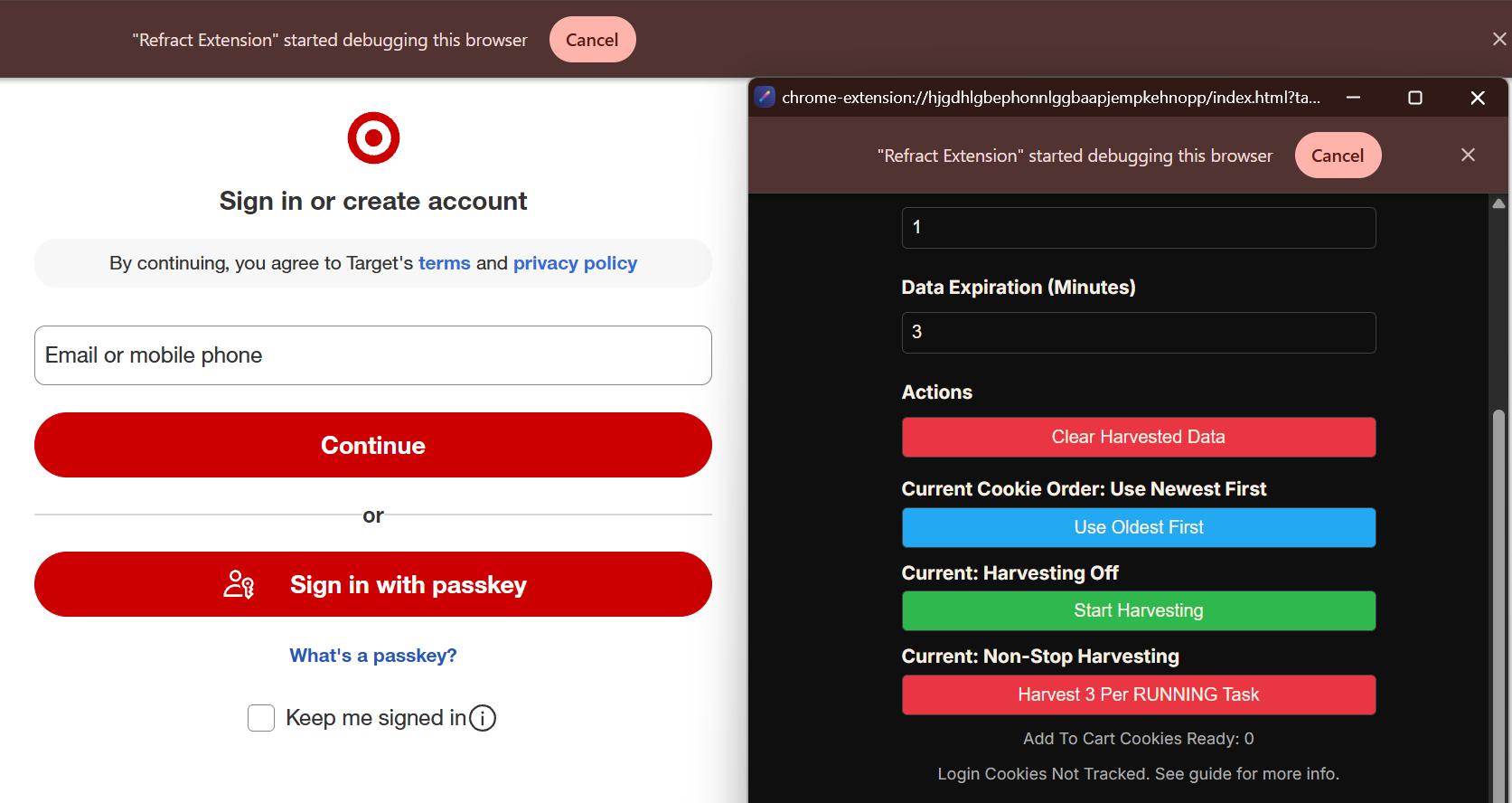
In the extension browser, click **My account** on Target, then click **Sign in or create account** so the sign-in form is showing.

<figure><img src="/files/big6bkk9mBfSiepGJQA2" alt="The Target sign-in panel"><figcaption><p>Get the sign-in form showing, then click Start Harvesting on the extension.</p></figcaption></figure>
{% endstep %}

{% step %}

#### Start harvesting

Click **Start Harvesting** on the extension. You will see a random email and password being entered automatically. That is normal, and you will not get signed in to the browser.

{% hint style="danger" %}
**Never manually sign in in the Chrome window.** The extension does the fake sign-in attempts itself; that is how the login cookies get harvested. Typing your real credentials in that window is not part of the process.
{% endhint %}
{% endstep %}

{% step %}

#### Watch tasks log in

Tasks move from Waiting for Cookies (Login) to logged in and **Waiting for Product**. First-time logins, or accounts whose profile info needs updating, will show **Waiting for Cookies (Product)** instead; they are logged in but need ATC cookies (Step 2) to finish.
{% endstep %}

{% step %}

#### Switch to ATC cookies

Once no tasks show Waiting for Cookies (Login), stop harvesting login cookies and move to Step 2. ATC cookies need harvesting 24/7, as long as Target tasks are running.
{% endstep %}
{% endstepper %}

{% hint style="info" %}
**Sessions logged in via the extension last days or weeks.** Logins from the Accounts tab (not recommended) may only last hours.
{% endhint %}

## Step 2: Harvest ATC (product) cookies

{% stepper %}
{% step %}

#### Go to any in-stock product

Navigate the extension browser to **any product that is in stock and available for shipping**. It does not matter what the product is. Do not use photo products. Toys like Legos are the most stable choice.
{% endstep %}

{% step %}

#### Start harvesting

Enable harvesting (or click add to cart once). The extension starts auto-clicking add to cart. You will see **"Something Went Wrong, Try Again!"** over and over. That is the harvest working; the product is never actually carted.

<figure><img src="/files/QYn7vxYhE2rsmqWs6jNU" alt="A product page showing Something Went Wrong while the harvester runs"><figcaption><p>"Something Went Wrong, Try Again!" is the harvest working, not an error.</p></figcaption></figure>
{% endstep %}

{% step %}

#### Watch the count

The **Amount Harvested** number in the extension increases as cookies bank. It decreases as tasks consume cookies or they expire. Both directions are normal.
{% endstep %}
{% endstepper %}

{% hint style="warning" %}
**Harvesting stopped producing cookies? The product went out of stock.** It does not matter what product you harvest on, only that it is in stock and available for shipping. Move to a new in-stock product and keep going.
{% endhint %}

{% hint style="info" %}
**Harvesting slowly?** Watch the add to cart button in the Target tab. If it is grayed out or loading slowly, that is your bottleneck: harvester speed is directly impacted by how fast the add to cart button loads. A snappier page (better proxy, calmer product) harvests faster.
{% endhint %}

## Recommended settings

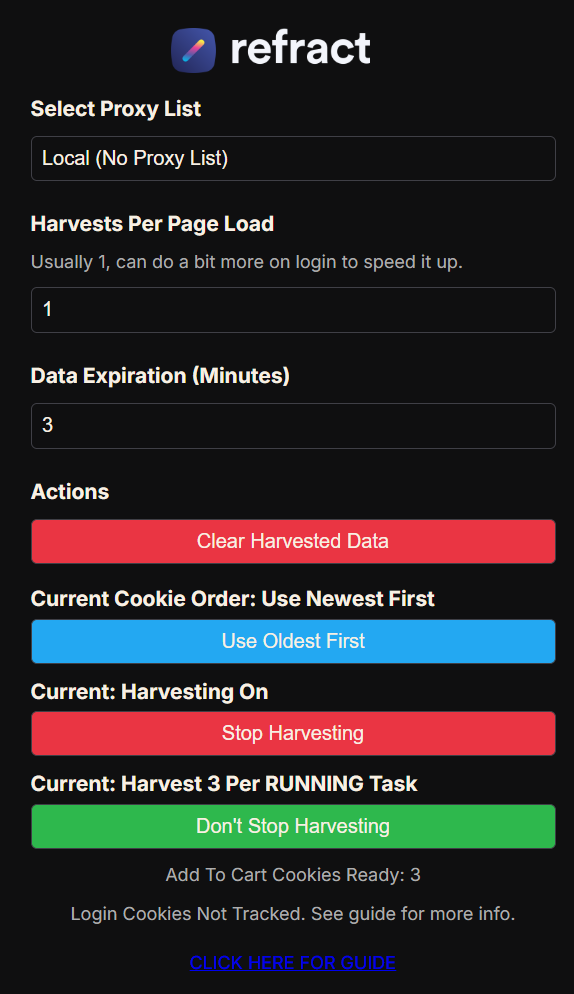
These are the defaults, and defaults exist for a reason:

| Setting                   | Value                                       |
| ------------------------- | ------------------------------------------- |
| Proxy List                | None (10 or fewer tasks); required above 10 |
| Harvests Per Page Load    | `1`                                         |
| Data Expiration (Minutes) | `3`                                         |
| Cookie Order              | Use Newest First                            |
| Harvesting                | On                                          |
| Harvest amount            | 3 per RUNNING task                          |

<figure><img src="/files/7CoWXao0WrdUtGTGxDc0" alt="The extension settings panel with the defaults" width="380"><figcaption><p>The defaults. They exist for a reason.</p></figcaption></figure>

## Running multiple harvesters

Only one extension instance works per browser user/profile; multiple tabs under the same profile will not. To run more harvesters, create more browser users, or spread across different Chromium browsers (Chrome, Brave, Edge), with the extension loaded and harvesting enabled in each.

**Creating a new Chrome user:**

1. Click your profile picture in the top right corner of Chrome.
2. Click **Add** (or **Add new profile**).
3. Choose **Continue without an account**, name the profile, and click **Done**.
4. A new Chrome window opens for that user. Install the extension in it the same way as before, and harvest away.

The same idea works in Brave and Edge via their profile menus.

## FAQ

<details>

<summary>Why is nothing being added to the cart in the extension Target tab?</summary>

By design. The extension is collecting cookies, not buying anything. "Something Went Wrong, Try Again!" and "Not Added to Cart" are what successful harvesting looks like. Once a product actually restocks, your tasks (not the extension) do the carting.

</details>

<details>

<summary>Why does the harvester say I'm signed out?</summary>

Normal. The harvester collects cookies; it does not hold a login session.

</details>

<details>

<summary>Do I need to sign in to Chrome or Brave itself?</summary>

No. You never need to sign in to the browser (a Google account in Chrome, a Brave account, and so on) to harvest. Profiles created with "Continue without an account" work fine.

</details>

<details>

<summary>Why is the browser showing the wrong product?</summary>

Ignore it. It does not affect harvesting.

</details>

<details>

<summary>My cookie counter isn't going up?</summary>

Three possibilities: tasks are consuming cookies as fast as they arrive, the product you are harvesting on went out of stock (switch products), or the extension is not set up properly (re-read this guide, and try a fresh Chrome profile with only the Refract extension in it).

</details>

<details>

<summary>My harvester keeps bouncing back to the login page from the product page?</summary>

Turn harvesting off, navigate to the product page, then start harvesting again.

</details>

<details>

<summary>Do the harvester proxies need to match my task proxies?</summary>

No. Harvesters and tasks can run different proxies or none at all. Keep in mind tasks present the harvester proxy to Shape for ATC and login.

</details>

<details>

<summary>What does a 407 error mean?</summary>

Proxy authentication error. Check your proxies.

</details>

<details>

<summary>I get a proxy login pop-up in the browser?</summary>

Close it and let it keep running.

</details>

<details>

<summary>Can I minimize the browser?</summary>

You can minimize the extension popup, but the Target page must stay at least partially visible on screen. Never hide or close it. On a server, keep a display connected.

</details>

<details>

<summary>Stuck on Waiting for Cookies (Login) or (Product)?</summary>

Generate the matching cookie type: login cookies for (Login), ATC cookies for (Product). If cookies exist and tasks still loop, they are being consumed and blocked; see the Shape guidance in the [release guide](/modules/target/general-target-release-guide.md).

</details>

<details>

<summary>Why do I keep seeing Shape Block?</summary>

Shape blocks are normal, for everyone, especially on later restocks when security is high. Accounts do not affect Shape blocks. Try different Chrome users, devices, or proxies, avoid servers, and rest your setup. The full Shape explanation lives in the [release guide](/modules/target/general-target-release-guide.md).

</details>

<details>

<summary>How long do cookies last?</summary>

Usually 10-15 minutes, some more, some less. 10 minutes is our safe maximum expiration time, for both the extension and the in-bot harvester. Trusted proxies help older cookies keep working.

</details>


---

# Agent Instructions
This documentation is published with GitBook. GitBook is the documentation platform designed so that both humans and AI agents can read, navigate, and reason over technical content effectively. Learn more at gitbook.com.

## Querying This Documentation
If you need additional information that is not directly available in this page, you can query the documentation dynamically by asking a question.

Perform an HTTP GET request on the current page URL with the `ask` query parameter, and the optional `goal` query parameter:

```
GET https://help.refractbot.com/modules/target/extension-shape-generation.md?ask=<question>&goal=<endgoal>
```

`ask` is the immediate question: it should be specific, self-contained, and written in natural language.
`goal` is optional and describes the broader end goal you are ultimately trying to accomplish on behalf of the user. GitBook uses it to tailor the answer towards what is most useful for that goal.

The response will contain a direct answer to the question and relevant excerpts and sources from the documentation.

Use this mechanism when the answer is not explicitly present in the current page, you need clarification or additional context, or you want to retrieve related documentation sections.