> For the complete documentation index, see [llms.txt](https://help.refractbot.com/llms.txt). Markdown versions of documentation pages are available by appending `.md` to page URLs; this page is available as [Markdown](https://help.refractbot.com/modules/amazon/amazon-setup-guide.md).

# Amazon Setup Guide

This is the complete guide to setting up and running Amazon releases and restocks in Refract. Follow each section in order if you are a new user. For Freebies & Deals, use its own guide instead:

{% content-ref url="/pages/mHZpyCgwxnstfxyscQka" %}
[Amazon Freebies & Deals 101](/modules/amazon/amazon-freebies-and-deals-101.md)
{% endcontent-ref %}

## Prerequisites

* Amazon accounts with a **default shipping address and default payment method already set on the account**. Amazon is the only site where this is required; there are no profiles on Amazon, so Refract checks out with what is on the account.
* Amazon Teen and Amazon Business accounts are supported.
* ISP proxies, at least 1 per task.
* The product's **ASIN and Offer ID**. Run both; ASIN by itself is often too slow.
* Optional: 2FA secrets for accounts with 2FA enabled (see [Amazon 2FA Secret Creation](/modules/amazon/amazon-2fa-secret-creation.md)).

{% hint style="warning" %}
**The best Amazon strategy: keep running through Access Denied and soft bans.** Blocks are expected on Amazon. Do not stop tasks when you see them; let tasks retry. Run each account up to 5 times, assuming you have the proxies for it (at least 1 ISP per task).
{% endhint %}

## Accounts Setup

{% stepper %}
{% step %}

#### Add your accounts

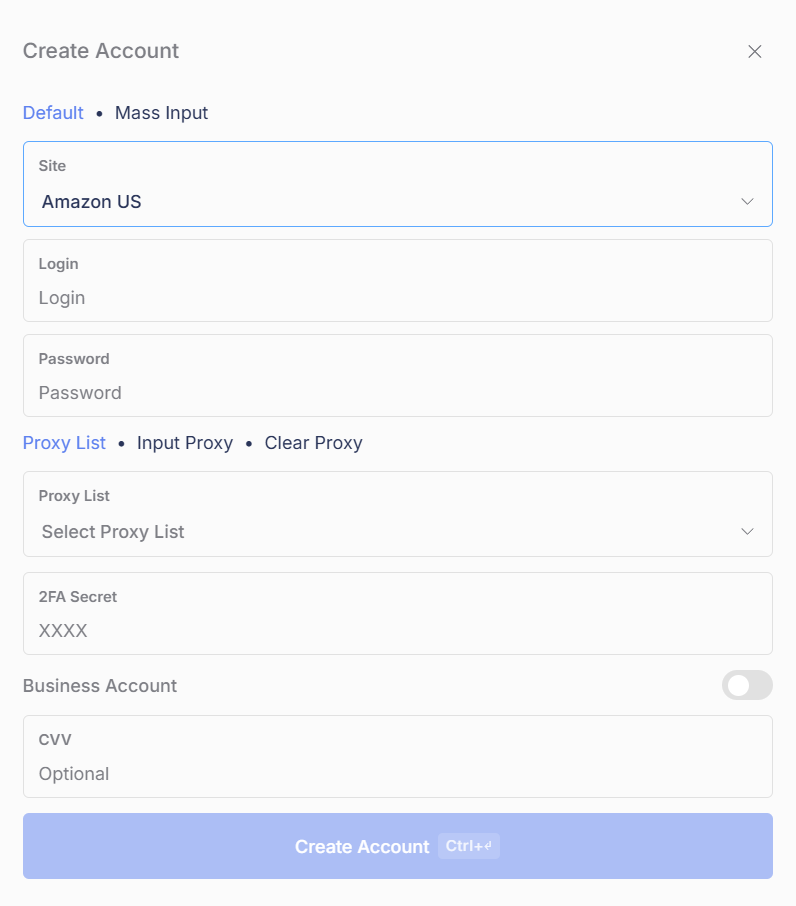
In the Accounts tab, create your accounts with **Amazon US** as the site (see the [Accounts guide](/general-setup/accounts.md) for the add flow). If an account has 2FA, paste its key into the **2FA Secret** field:

{% content-ref url="/pages/A2BFM0IcdfNZAThDiz12" %}
[Amazon 2FA Secret Creation](/modules/amazon/amazon-2fa-secret-creation.md)
{% endcontent-ref %}
{% endstep %}

{% step %}

#### Check the account's defaults

Make sure each account has a default shipping address and default payment method set on Amazon itself. Refract uses the account's data at checkout, not a profile.
{% endstep %}

{% step %}

#### Log the accounts in

Amazon accounts must be logged in **before** you create tasks. Select the accounts and click the **lock** button. Amazon is the only site that logs in this way; do this first, every time.
{% endstep %}
{% endstepper %}

## Task Group Setup

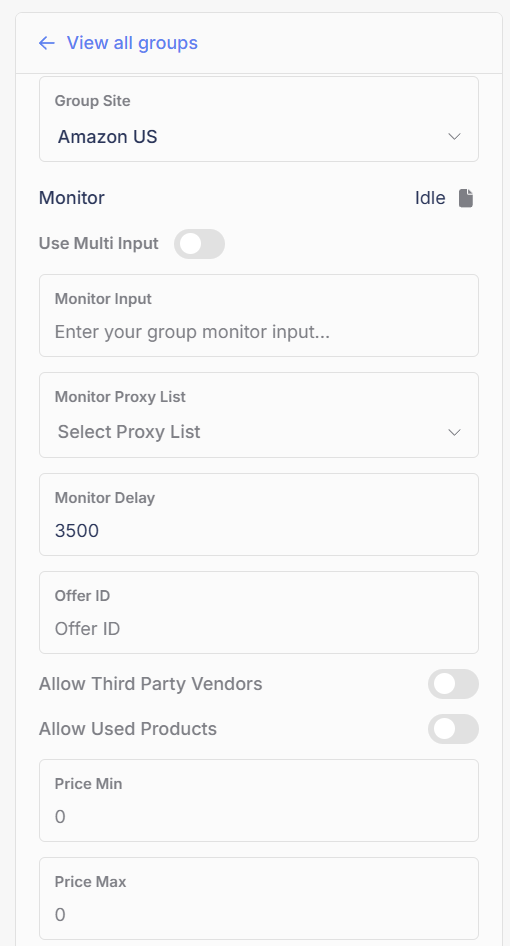
Create a task group with **Amazon US** as the site (see [Task Group Creation](/general-setup/task-creation/task-group-creation.md)), then configure the settings panel:

<figure><img src="/files/eWiCIwDIZT3yihYPH3Fe" alt="The Amazon US task group settings panel" width="380"><figcaption><p>The Amazon group panel. Run ASIN + Offer ID together.</p></figcaption></figure>

| Setting                                  | Value                                | Notes                                                                                |
| ---------------------------------------- | ------------------------------------ | ------------------------------------------------------------------------------------ |
| Use Multi Input                          | OFF unless running multiple products | Formats below                                                                        |
| Monitor Input                            | The product's ASIN                   | From the URL: `amazon.com/dp/B08SGTGTZD` → `B08SGTGTZD`. A URL will not work         |
| Monitor Proxy List                       | Your ISP list                        | Can be the same list as your tasks                                                   |
| Monitor Delay                            | `3500` (default)                     |                                                                                      |
| Offer ID                                 | The product's OID                    | Run ASIN + OID together. ASIN alone is often too slow                                |
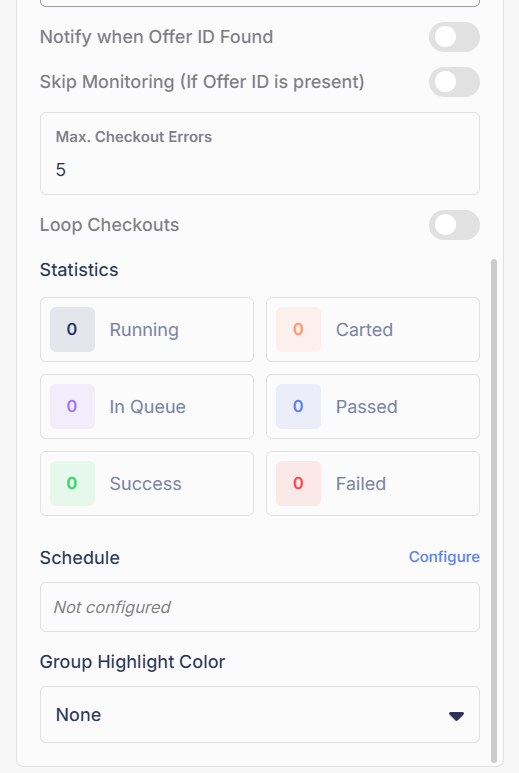
| Allow Third Party Vendors                | OFF                                  | ON to include third-party offers. Does nothing with an OID (already seller-specific) |
| Allow Used Products                      | OFF                                  | ON to include used offers. Does nothing with an OID (already condition-specific)     |
| Price Min / Price Max                    | Leave blank                          | Price filters for 1 item, before tax and shipping. Blank means no limit              |
| Notify when Offer ID Found               | Optional                             | Posts to your notifications webhook when the monitor finds an Offer ID               |
| Skip Monitoring (If Offer ID is present) | OFF                                  | See [Offer ID, explained](#offer-id-explained)                                       |
| Max. Checkout Errors                     | `5` (default)                        | Checkout errors allowed before the task stops the attempt and returns to monitoring  |
| Loop Checkouts                           | OFF                                  | ON to keep attempting checkouts after each success                                   |

**Multi Input formats** (one per line, only with Use Multi Input on):

```
ASIN
ASIN;MAX_PRICE
ASIN;OFFERID
ASIN;MAX_PRICE;OFFERID
```

All inputs are monitored at once, not one at a time.

<figure><img src="/files/aun2ruEnGhOFhNYUNhVr" alt="The lower half of the Amazon group settings" width="400"><figcaption><p>The lower half of the panel: vendor and condition toggles, prices, OID options, and Max Checkout Errors.</p></figcaption></figure>

## Task Creation

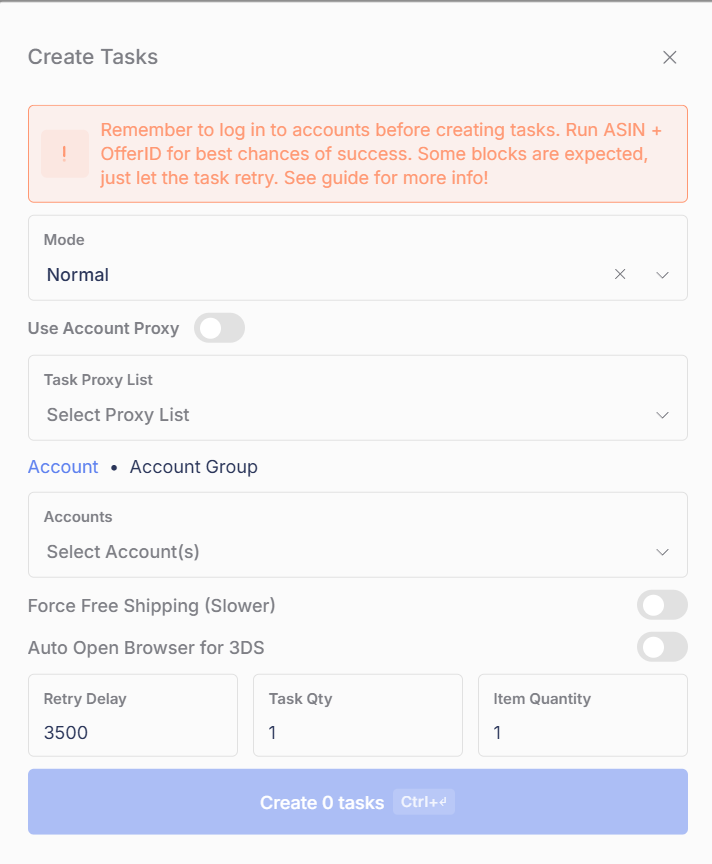
Click **+** in the task group to open Create Tasks.

{% hint style="danger" %}
**Log in to accounts before creating tasks.** The bot reminds you in this window for a reason. Tasks need logged-in accounts to run.
{% endhint %}

<figure><img src="/files/APEeobUgpwQPZNtX1hZ7" alt="The Amazon Create Tasks window" width="450"><figcaption><p>Normal mode for releases and restocks. Raffle mode enters raffles, typically Amazon Japan.</p></figcaption></figure>

| Setting                      | Value                          | Notes                                                                                          |
| ---------------------------- | ------------------------------ | ---------------------------------------------------------------------------------------------- |
| Mode                         | Normal                         | **Raffle** enters raffles instead, typically for Amazon Japan                                  |
| Use Account Proxy            | OFF                            | Only if you deliberately assigned account proxies                                              |
| Task Proxy List              | Your ISP list                  | At least 1 ISP per task                                                                        |
| Accounts                     | Your accounts or Account Group |                                                                                                |
| Force Free Shipping (Slower) | OFF                            | ON prioritizes free shipping on accounts without Prime, at the cost of speed                   |
| Retry Delay                  | `3500` (default)               |                                                                                                |
| Task Qty                     | `1` to `5`                     | Tasks created **per account**. Up to 5 per account works if you have the proxies for it        |
| Item Quantity                | `1`                            | Units per checkout. If Amazon's limit is lower, the bot automatically goes for the max allowed |

## Offer ID, explained

An Offer ID is a unique identifier for a specific product offer from a specific seller. Running an OID targets and spams Add to Cart on that exact listing, bypassing traditional monitoring for speed. For extremely limited items that go out of stock instantly, an OID can be the only way to cart in time.

The rules:

* **ASIN is required alongside the OID.** An OID never runs alone.
* **OIDs are not price-specific.** Prices can and do change on the same OID, so set a Price Max.
* **OIDs change frequently, and that is fine.** The same user can get a different OID on every refresh, multiple OIDs often point to the same offer, and old OIDs keep working. As long as it points to the right offer, it does not matter which one you have.
* OIDs come from your cook group or monitors, and the in-bot [monitor feed](/general-setup/task-creation/monitor-setup-and-multi-input.md#in-bot-monitor-and-checkout-feed).

**Skip Monitoring (If Offer ID is present):** with an OID in place, this skips monitoring entirely and immediately spams cart attempts. Use it when you know the drop time or the item is actively restocking and you need instant carts. Otherwise leave it off.

## Common statuses

### Access Denied

**What it means:** the account or proxy was flagged. **This is normal on Amazon.** The strategy is to keep running through it and let tasks retry.

On the monitor specifically: a few Access Denied responses when first starting are normal. The monitor rotates proxies and settings in the background until it finds the optimal setup, then sits on "monitoring" for long stretches. That means it is working. The only concern is nonstop Access Denied spam that never recovers, which points to flagged proxies or accounts.

If it truly never recovers: increase task delays, let the account rest for several hours or days, or use fresh, higher-quality proxies.

### Soft Banned (OOS)

**What it means:** Amazon is returning a false Out of Stock even though the product is available. It is a soft ban on the specific account, proxy, or session, usually from too many requests too fast, low-trust proxies, or rapid logins from multiple locations.

**How to handle it:** same strategy, keep running. If it persists: switch proxies, try a different account, let the account rest, or increase the retry delay.

### No Default Payment Method / No Default Address

Amazon sometimes drops default settings on its own. To fix:

1. **Address:** verify the default shipping address on the account (the address section in the top left of the Amazon homepage) and make sure it is marked default.
2. **Payment:** remove the current default payment method and re-add it to re-establish it as the default.

## FAQ

<details>

<summary>How many accounts do I need?</summary>

As many as you can have. There is no set number.

</details>

<details>

<summary>How many tasks per account?</summary>

Up to 5 tasks per account works, assuming you have the proxies for it (at least 1 ISP per task). Set Task Qty accordingly; it creates that many tasks per account.

</details>

<details>

<summary>What delays should I run?</summary>

Monitor `3500`, task retry `3500`. The defaults.

</details>

<details>

<summary>What proxies should I use on Amazon?</summary>

ISP proxies, at least 1 per task.

</details>

<details>

<summary>Do I need an ASIN if I am running an OID?</summary>

Yes. ASIN and OID always run together on Amazon.

</details>

<details>

<summary>Are Teen and Business accounts supported?</summary>

Yes, both.

</details>

<details>

<summary>Can I run another task on an account that is already doing Freebies?</summary>

Yes. Running an additional task for a different item on the same account is fine.

</details>

<details>

<summary>Is Price Max before or after tax and shipping?</summary>

Before. Price Max is the total of just the item.

</details>

<details>

<summary>Will the bot adjust quantity if Amazon's max is lower than my Item Quantity?</summary>

Yes. If you request 4 and Amazon allows 2, the bot automatically goes for 2.

</details>


---

# Agent Instructions
This documentation is published with GitBook. GitBook is the documentation platform designed so that both humans and AI agents can read, navigate, and reason over technical content effectively. Learn more at gitbook.com.

## Querying This Documentation
If you need additional information that is not directly available in this page, you can query the documentation dynamically by asking a question.

Perform an HTTP GET request on the current page URL with the `ask` query parameter, and the optional `goal` query parameter:

```
GET https://help.refractbot.com/modules/amazon/amazon-setup-guide.md?ask=<question>&goal=<endgoal>
```

`ask` is the immediate question: it should be specific, self-contained, and written in natural language.
`goal` is optional and describes the broader end goal you are ultimately trying to accomplish on behalf of the user. GitBook uses it to tailor the answer towards what is most useful for that goal.

The response will contain a direct answer to the question and relevant excerpts and sources from the documentation.

Use this mechanism when the answer is not explicitly present in the current page, you need clarification or additional context, or you want to retrieve related documentation sections.