> For the complete documentation index, see [llms.txt](https://help.refractbot.com/llms.txt). Markdown versions of documentation pages are available by appending `.md` to page URLs; this page is available as [Markdown](https://help.refractbot.com/modules/amazon/amazon-freebies-and-deals-101.md).
# Amazon Freebies & Deals 101
Deep dive into Amazon Freebies & Deals setup!
## Before we begin...
Welcome to the Refract setup support document! This guide will walk you through the simple steps to start enjoying freebies and deals using Refract. There are really only a few steps before you are up and running! Don't miss them though - each one is crucial in order to have success!
### Overview
1. [Create proxy lists (optional)](https://help.refractbot.com/module-guides/amazon-freebies-and-deals-101#proxy-list-creation-optional)
2. [Adding your Amazon Prime account(s) to Refract](https://help.refractbot.com/module-guides/amazon-freebies-and-deals-101#adding-your-account-s)
3. [Task group creation](https://help.refractbot.com/module-guides/amazon-freebies-and-deals-101#task-group-creation)
4. [Task creation](https://help.refractbot.com/module-guides/amazon-freebies-and-deals-101#task-creation)
5. Success
## Proxy List Creation (Optional)
* Proxies are essential when using multiple accounts for freebies. There are two ways to add proxies to the bot: creating a proxy list or adding them during account creation. In this guide, we will concentrate on adding proxies to a new proxy list. If you decide not to create a proxy list now, you will need to assign proxies to each account individually during the account creation process later on.
1. 1.) The first step is to navigate to the proxy list tab. 
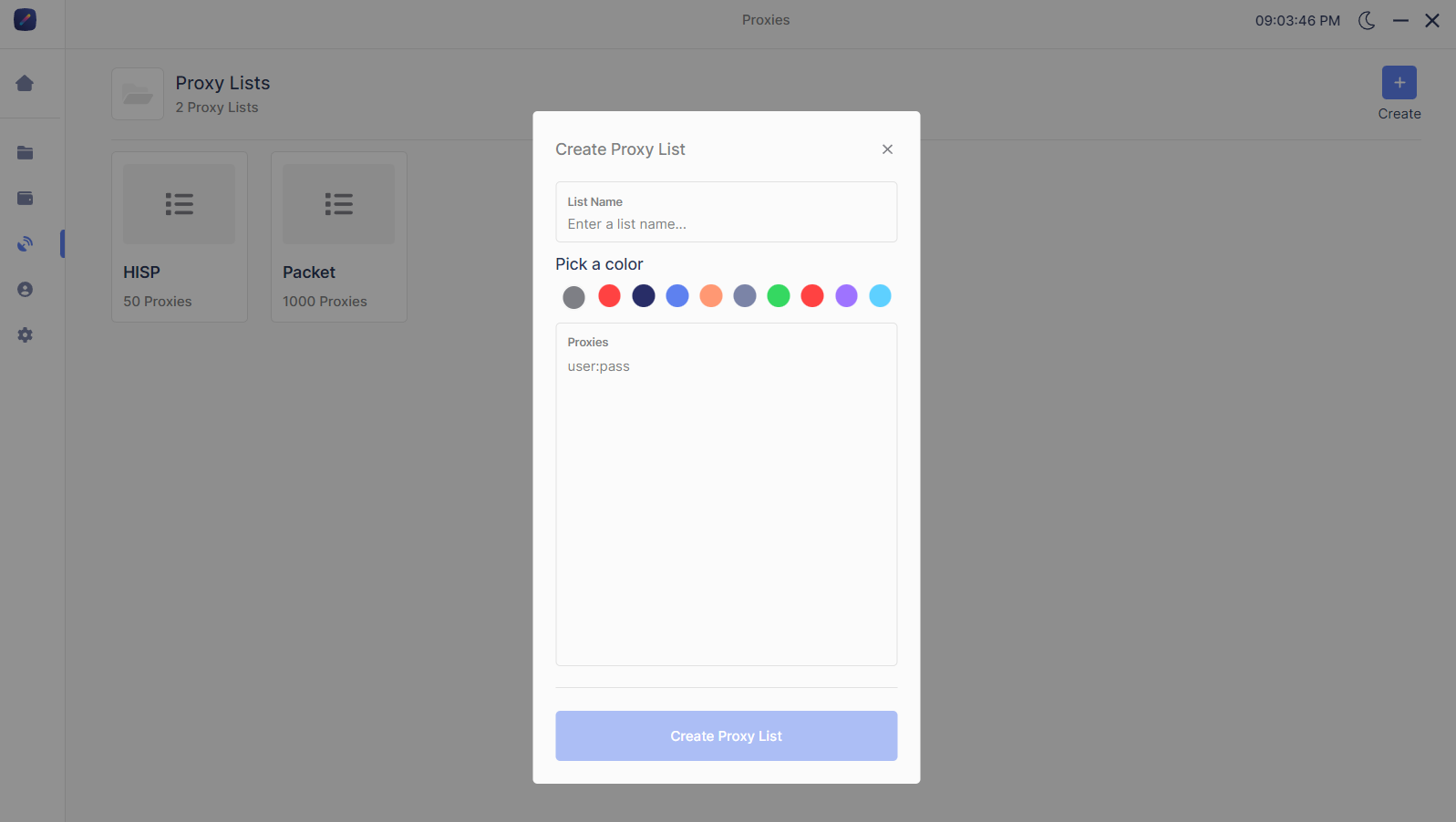
2. Once in the proxy list tab, you will want to create a new list by clicking the `Create` button in the top right hand corner. A proxy creation window will open up where you will name your list, choose a color (optional for ease of use) and paste your proxies.
{% hint style="info" %}
Remember: only one proxy per line, and proxies must follow `ip:port:user:pass` format. `ip:port` is also acceptable for IP authenticated proxies.
{% endhint %}
## Adding Your Account(s)
* Amazon accounts are the fuel for freebies. Having accounts properly setup is essential for success.
### Account Requirements
{% hint style="info" %}
* Amazon Prime
* Default address & payment method
* Refract exclusivity! Do NOT run this account on any other software or you will encounter errors.
{% endhint %}
### Adding Your Account(s)
* Accounts can be added via the accounts tab. The accounts tab is located directly below the proxy group tab in the tool bar.
1. The first step is to navigate to the account groups tab. 
2. To create a new account group, go to the account groups tab and click the Create button in the top right corner. A window will appear where you can name the group, choose a color (optional), and select the accounts. If it's your first time setting up, click "Create Group (0 Accounts)" and we will add your account to the group later.
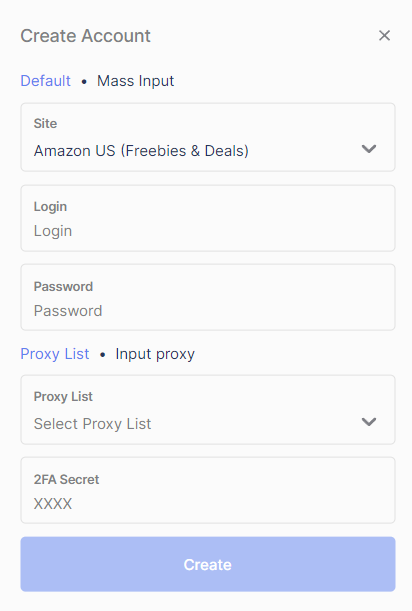
3. To add your account to the bot, click the "+" icon at the top of the new account group. A window will open where you can provide the necessary details.
4. For Amazon US (Freebies & Deals), select either Amazon US or Amazon US (Freebies & Deals) as the site. Both options will work.
5. Enter your Amazon email in the login box and your password in the password box.
6. Next, choose a proxy list or input a proxy. If you have a proxy list, you can choose to use it for your accounts' logins or leave it blank. If you don't have a proxy list, you can add an individual proxy by clicking "Input proxy" and pasting a single proxy into the bot.
{% hint style="info" %}
Note: adding a proxy in the account step is only required if you didn't create a proxy list previously. Assigning an individual proxy to a specific account can provide more control over your setup, but is not necessary.
{% endhint %}
7. The 2FA secret box is for 2FA authentication keys. If you do not have this setup, do not worry and leave this box blank.
8. Fill in the **CVV** field with the card CVV on the Amazon account. Refract uses it to auto-complete Amazon 3DS (CVV verification) after checkout. See [CVV and 3DS](/modules/amazon/amazon-setup-guide.md#cvv-and-3ds).
9. Finally, click create.
### Logging In
* After your account has been created, you will need to login to that account. To login to that account, simply click the account to select it. To select multiple accounts, hold the `CTRL` key or do `CTRL + A` to select all accounts.
* Once your desired accounts have been selected, click the lock icon to login to the account(s).
## Task Group Creation
* After your accounts are ready to go, it is time to create your task group.
1. The first step is to navigate to the task groups tab. 
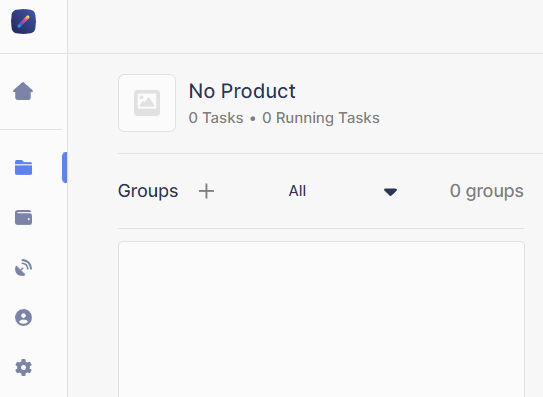
2. Once in the tasks groups tab, you will want to create a new group by clicking the `+` button near the top of the groups section.
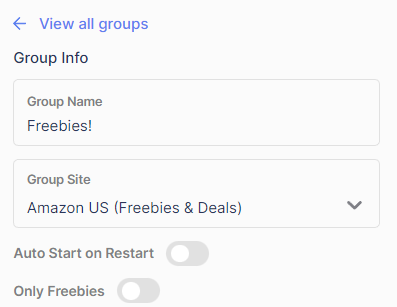
3. After clicking the creation button, a window will open where you can name your task group and choose the site. In this case, the group site should be `Amazon US (Freebies & Deals)`
### Group Settings
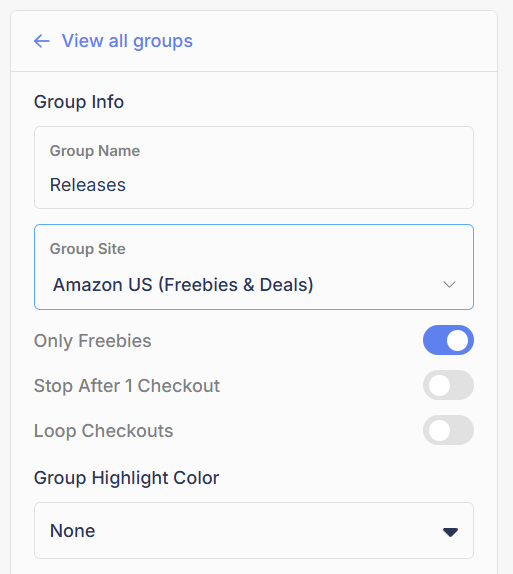
Open the group (double-click it) to see its settings:
Only Freebies stays ON for free products only. Turn it OFF to run deals.
* **Only Freebies:** ON by default. The group only goes for free products. Turn it OFF to run discounted deals as well (see [Deals](#deals) below for the filters).
* **Stop After 1 Checkout:** with this ON, tasks stop after their first successful checkout instead of continuing.
* **Loop Checkouts:** with this ON, tasks keep attempting checkouts after each success.
## Task Creation
* The last step before you rake in these free products is to create your tasks.
{% hint style="warning" %}
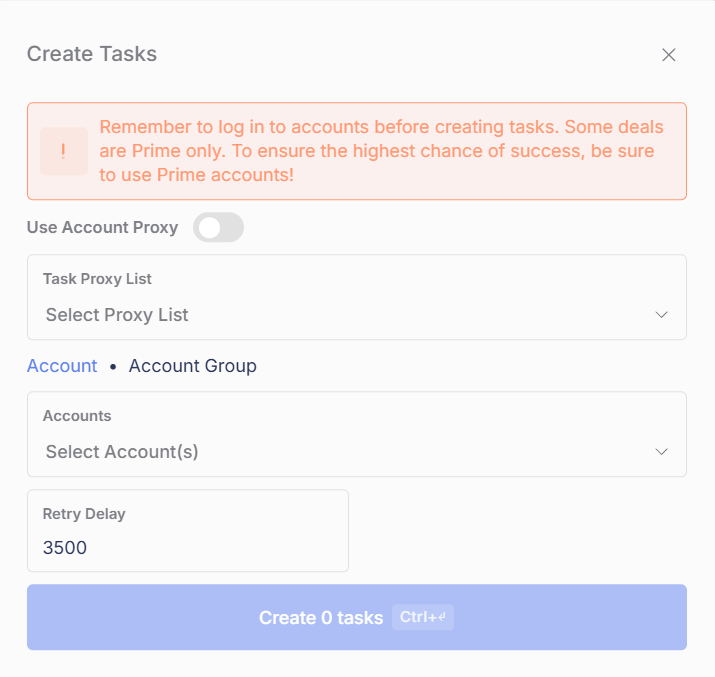
**Some deals are Prime only.** To ensure the highest chance of success, use Prime accounts. And remember: accounts must be logged in before creating tasks.
{% endhint %}
1. First, click the `+` Add button near the top right hand corner of the task group.
Proxies, accounts, and retry delay. Some deals are Prime only.
2. A task creation window will open:
1. `Use Account Proxy` should be enabled if you added proxies directly to your account in account creation. Otherwise, select the task proxy list you previously created.
2. Next select your account(s) you want to run. You can also choose to run an entire account group.
3. Finally, set the Retry Delay. It can range from 0 to 3500. If you are new, leave it at `3500`.
3. After you have all of the above set, create your tasks.
## Success
* Congrats! You are ready for free products. The last step is to start your tasks by clicking the `Start` button. All tasks should show `Waiting for Product`. This is a normal step, and one where you will see your tasks at quite often.
{% embed url="" fullWidth="true" %}
Check out our recent checkouts here!
{% endembed %}
## Deals
* Refract doesn't just support free products, you can also run for a multitude of heavily discounted products.
* To set up for these deals, simply disable the `Only Freebies` toggle in the task group.
1. `Min Discount Percentage` is the minimum discount you want to go for. For example, if you want products that are only 90% off or above (including freebies), put 90.
2. `Max Price of Product` is the final TOTAL price (including shipping and tax) of the product. If you want the max price to be $5, put 5.
3. `Min. Price Off` is the minimum price (in dollars) you want off from the product. If you only want products that are $100 or more dollars off, put 100.
{% hint style="info" %}
Not all three of these are required. You can set one, two, or all three. Feel free to adjust to suit your needs.
{% endhint %}
## Why am I not hitting?
* Below is a checklist to ensure you have everything setup properly. If you have everything correct, please open a ticket in the support server and we would be happy to further assist you.
- [ ] Restart your bot. This ensure your are connected to our servers.
- [ ] Proxies assigned on all tasks. Could be a proxy list, or account proxy. Note: this applies if you are running more than 1 account. Running 1 account with no proxy is OK.
- [ ] Accounts have Amazon Prime
- [ ] Refresh your login session. To refresh your session, [follow the login steps again.](https://help.refractbot.com/module-guides/amazon-freebies-and-deals-101#task-creation)
- [ ] Ensure you are not running your account on more than one bot or multiple times in Refract.
- [ ] If the above does not help, PLEASE open a ticket and we will gladly help!
---
# Agent Instructions
This documentation is published with GitBook. GitBook is the documentation platform designed so that both humans and AI agents can read, navigate, and reason over technical content effectively. Learn more at gitbook.com.
## Querying This Documentation
If you need additional information that is not directly available in this page, you can query the documentation by asking a question.
Perform an HTTP GET request on the following URL with the `ask` and `goal` query parameters:
```
GET https://help.refractbot.com/modules/amazon/amazon-freebies-and-deals-101.md?ask=&goal=
```
`ask` is the immediate question: it should be specific, self-contained, and written in natural language.
`goal` is what the user is ultimately trying to achieve, the reason they need the answer. Sharing it helps GitBook give you a better, more relevant answer. A goal is most helpful when it describes the outcome the user wants rather than restating the question. For example, with `ask=how do I create an API token`, a goal like `automate deployments from our CI pipeline` lets GitBook tailor the answer to that use case.
The response will contain a direct answer to the question and relevant excerpts and sources from the documentation.
Use this mechanism when the answer is not explicitly present in the current page, you need clarification or additional context, or you want to retrieve related documentation sections.